

 Connect with Google
 Connect with Facebook
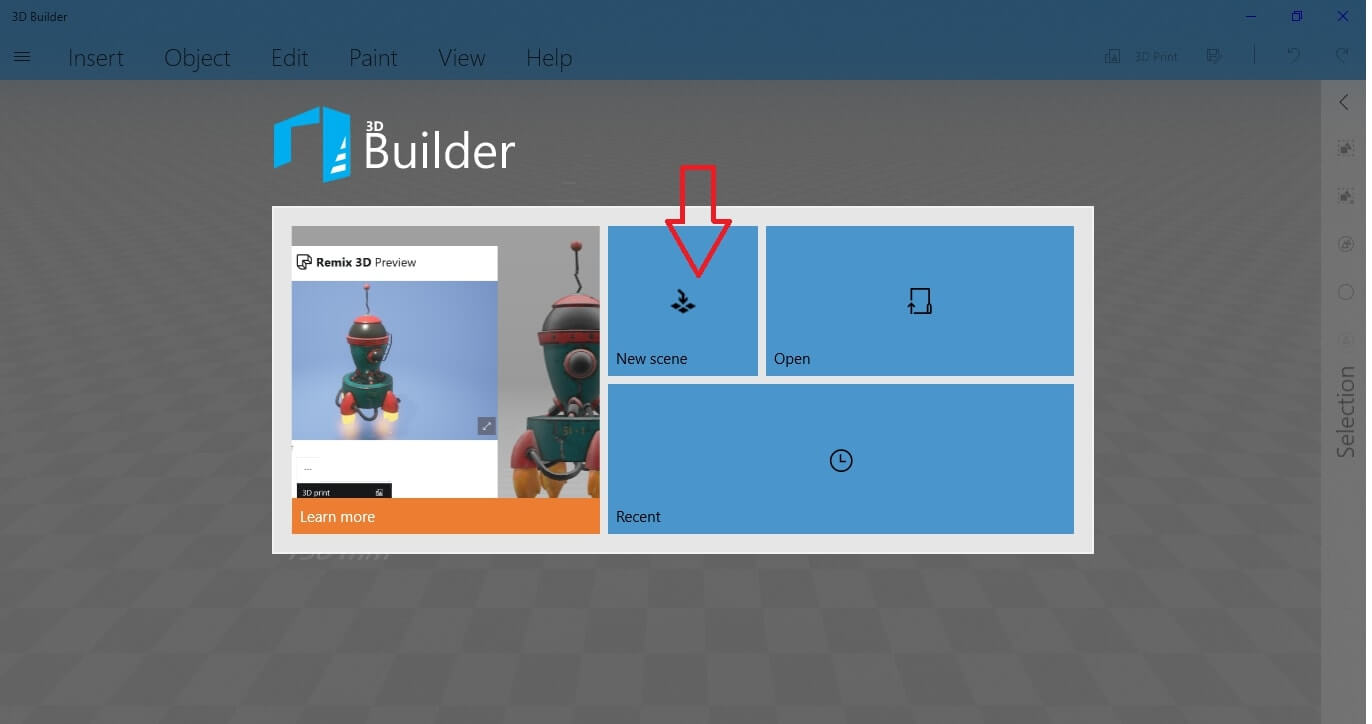
When you open the 3D Builder software, you get this screen. To get started, select ‘New Scene’.
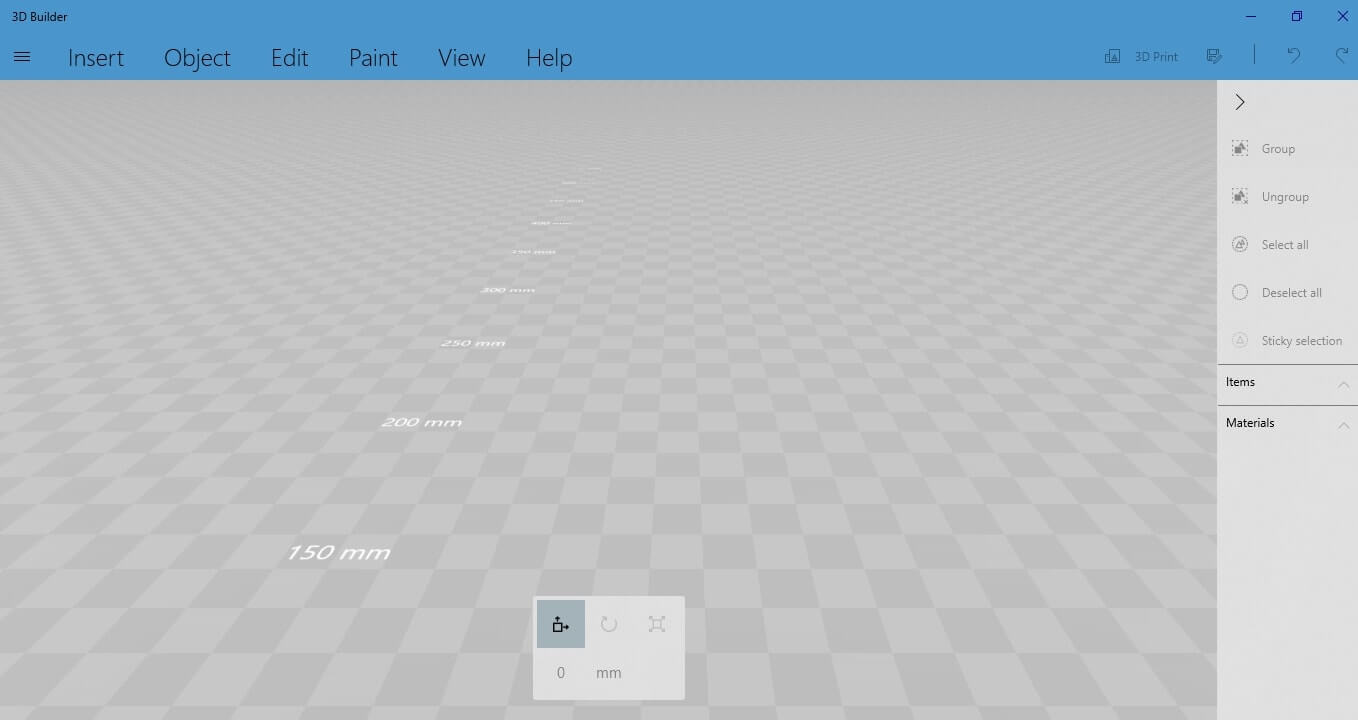
Now you have an empty workspace where you will be working on what looks like this:
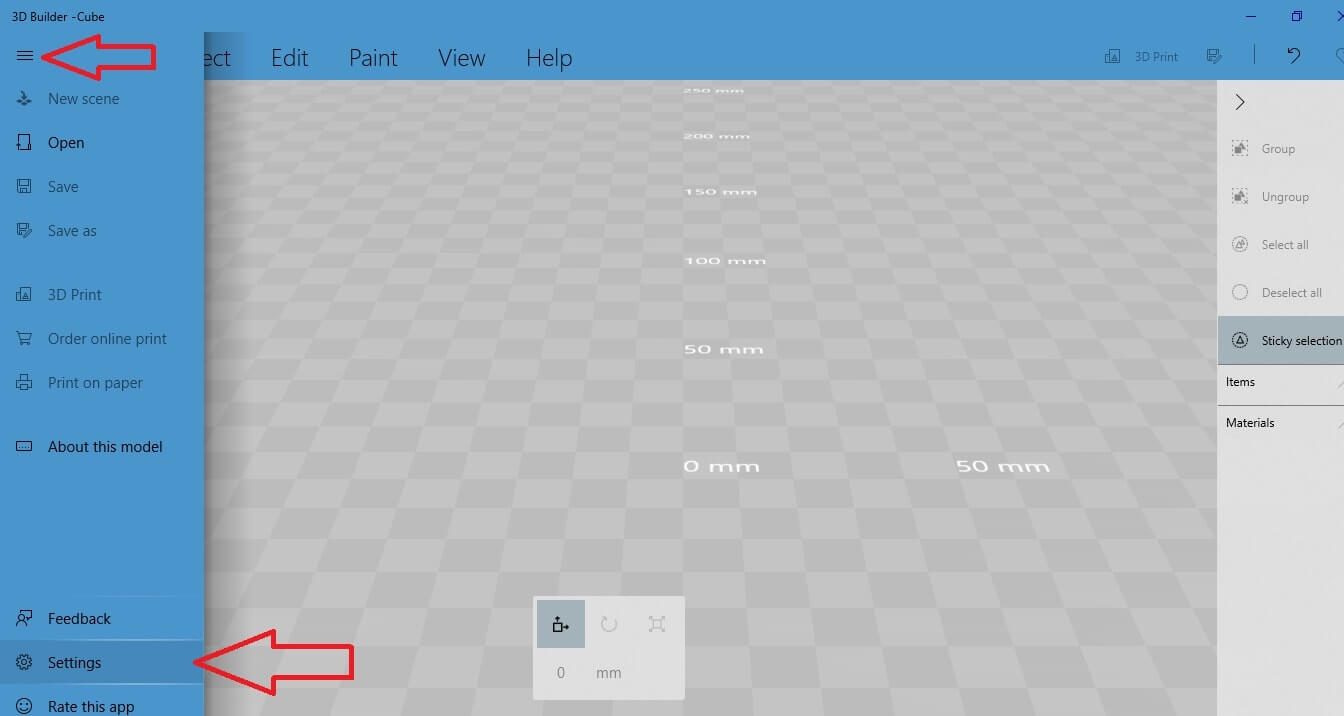
From the menu bar on the left side, select the “Settings” option.
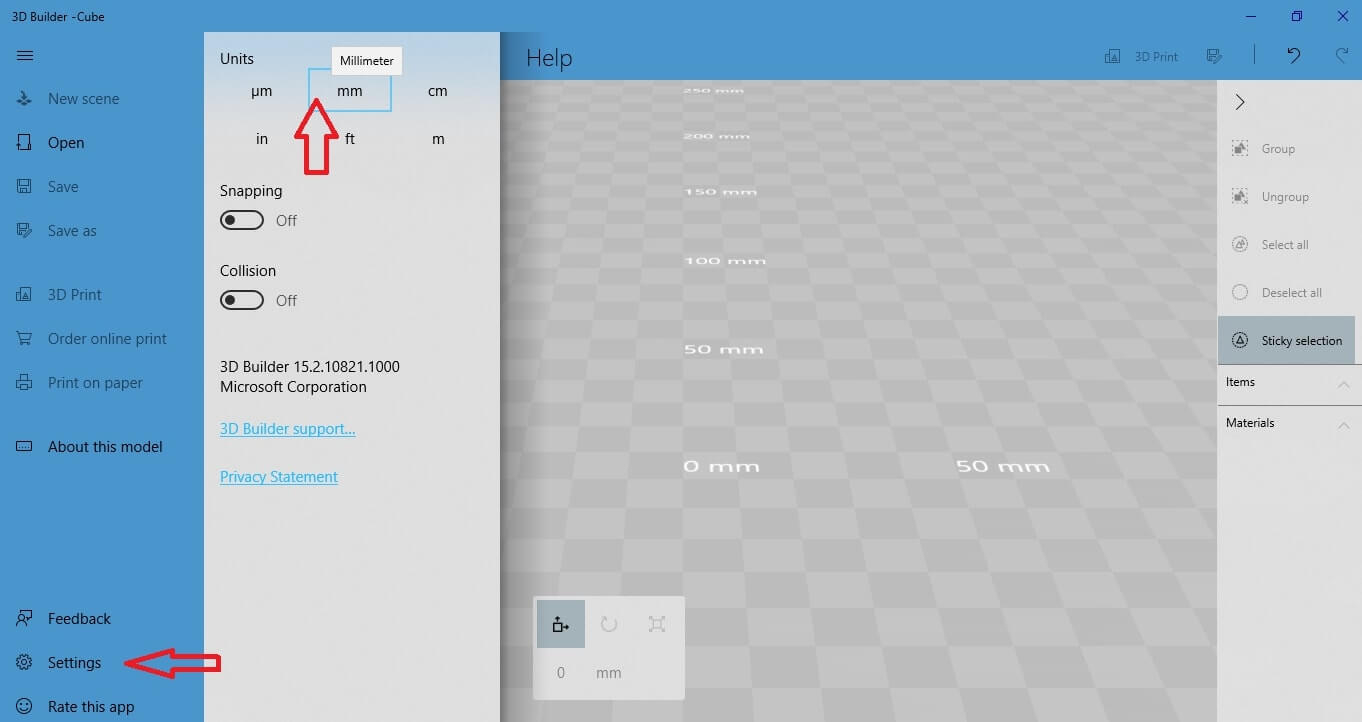
You can choose the units you want to use when designing. For example, to design a 3D object in
Once you are in the workspace, go to the menu on the left side. Select “Open” and choose among the various options to start your design journey.
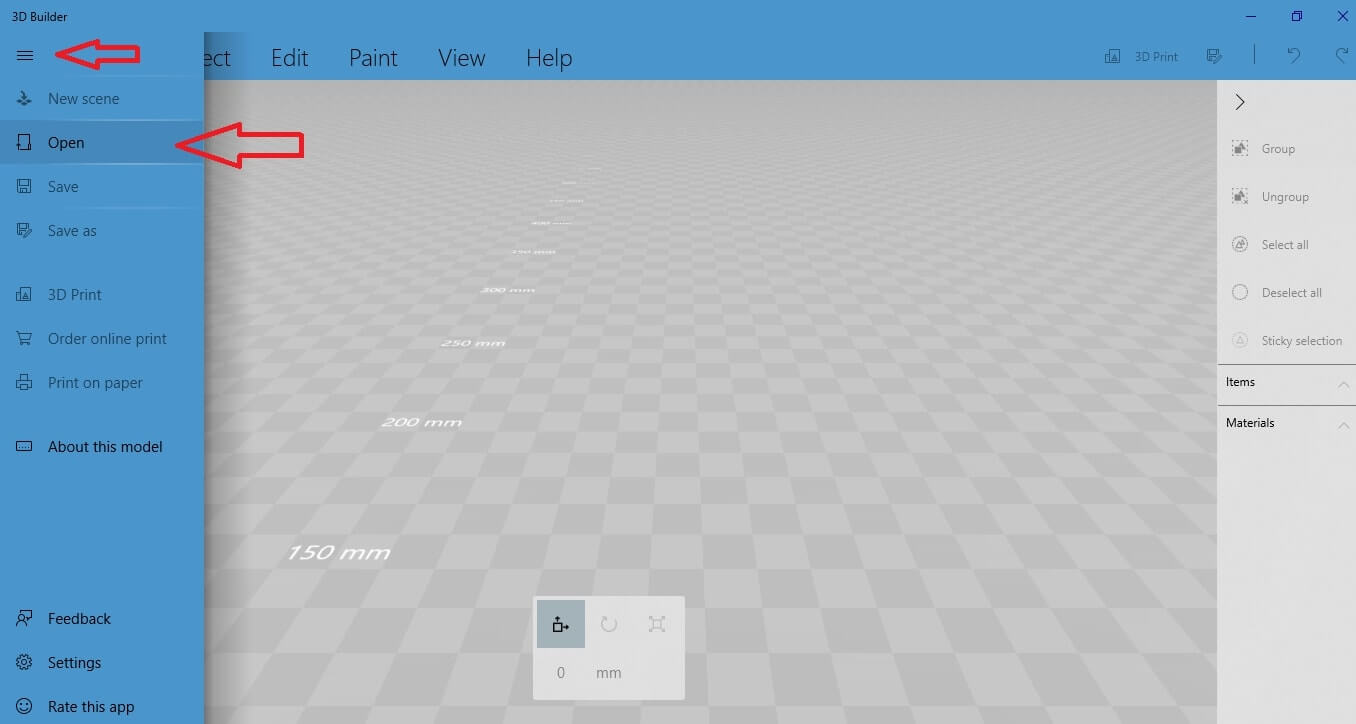 The list of options you get are: “Load object”, “Load image”, “Camera”, “Scan”.
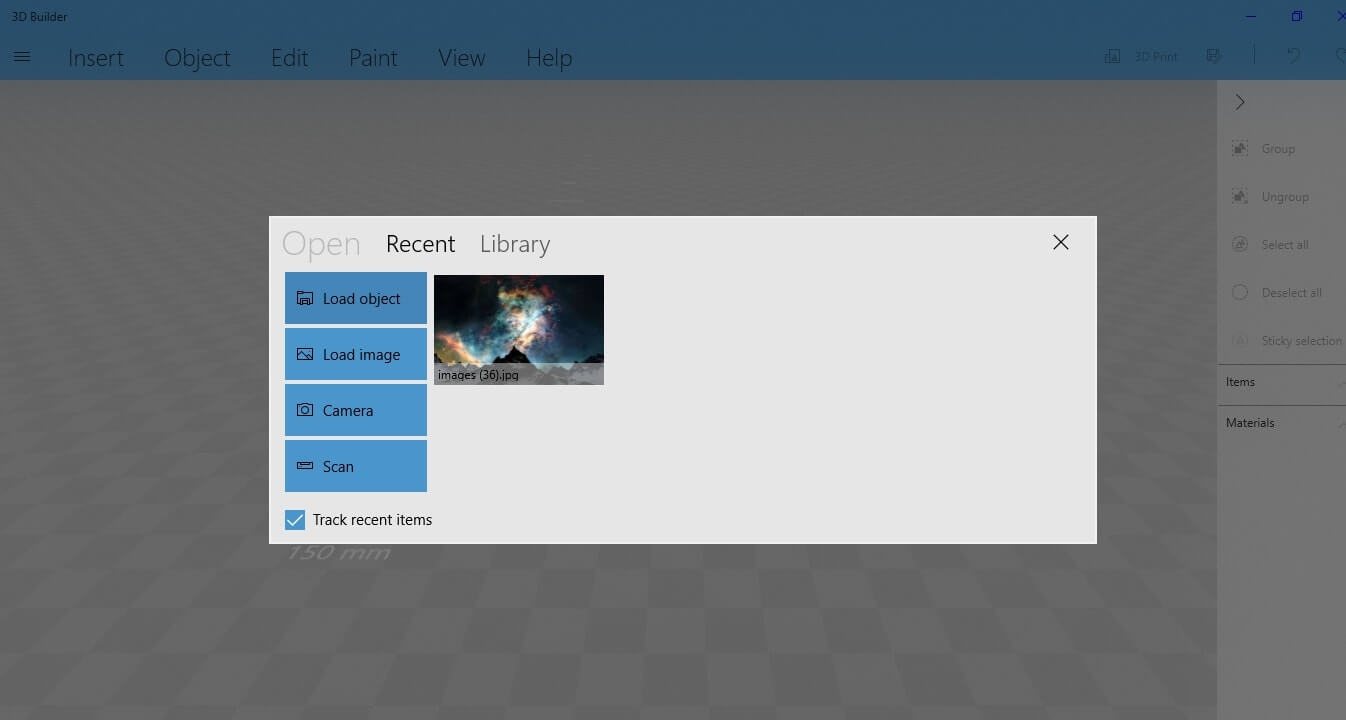 Let’s browse these options one by one to see
 how you can use them.
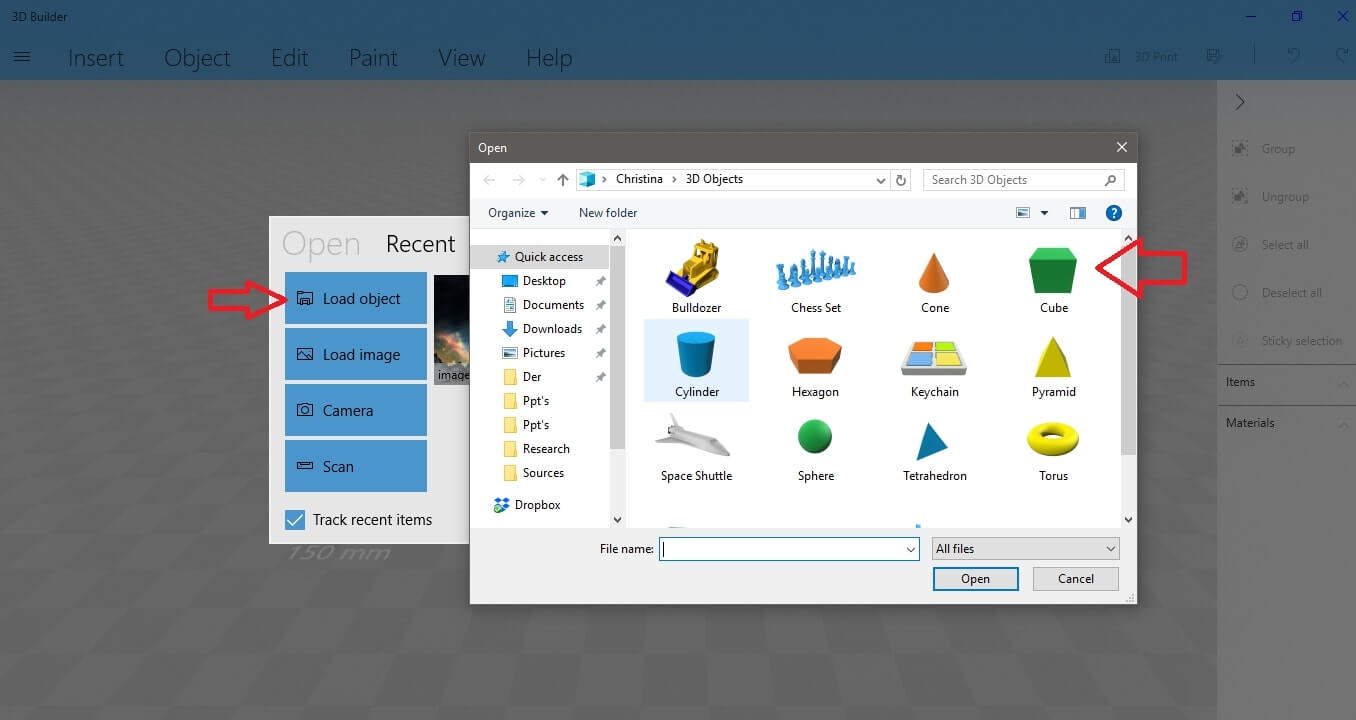
Select “Load object” and you will get a list of of to the workspace.
You can use these shapes as initial models to edit them and create your own personalized 3D shape.
For example, select the cube icon and place it in the workspace.
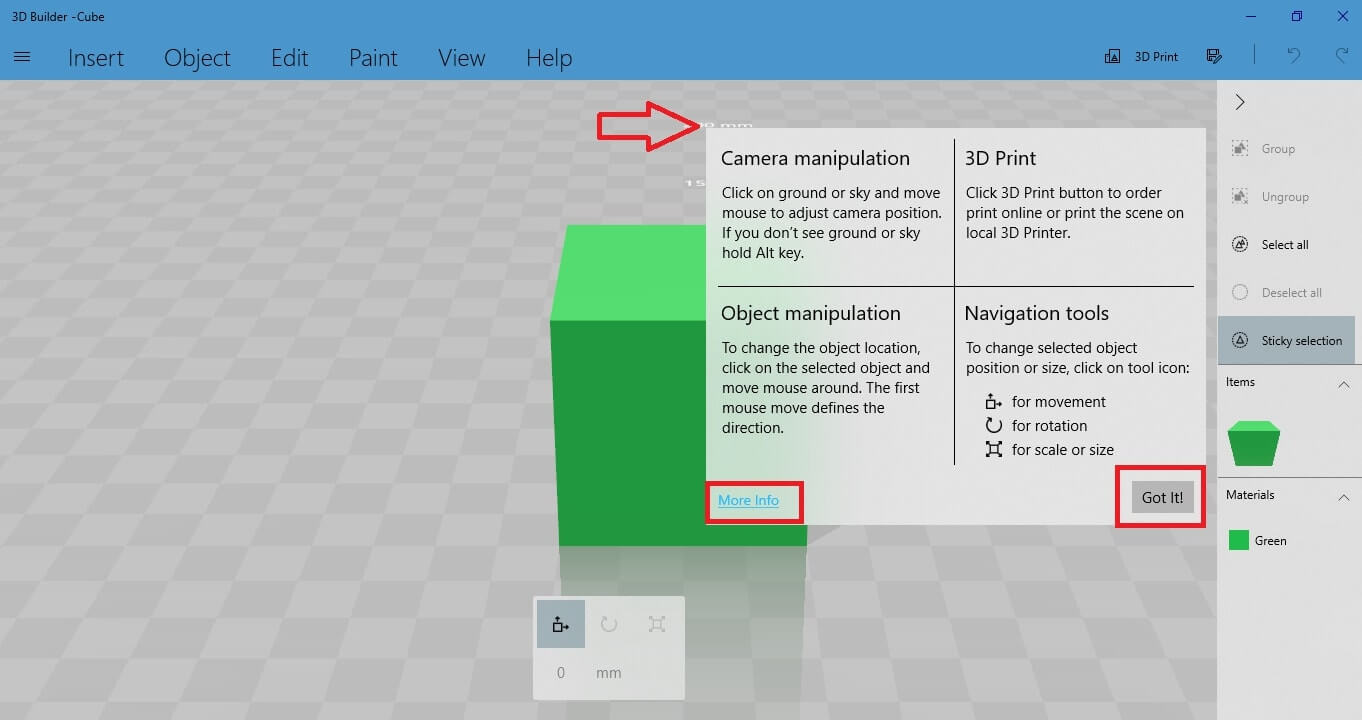
 You will see a window appearing with instructions and options about manipulating the object.
The list of options you get are: “Load object”, “Load image”, “Camera”, “Scan”.
Let’s browse these options one by one to see To activate the editing of the 3D shape you will work on, you first have to select it by left-clicking on it. When you select the shape, you will notice it is highlighted with a blue stroke. It’s important to make sure that you always select your object,
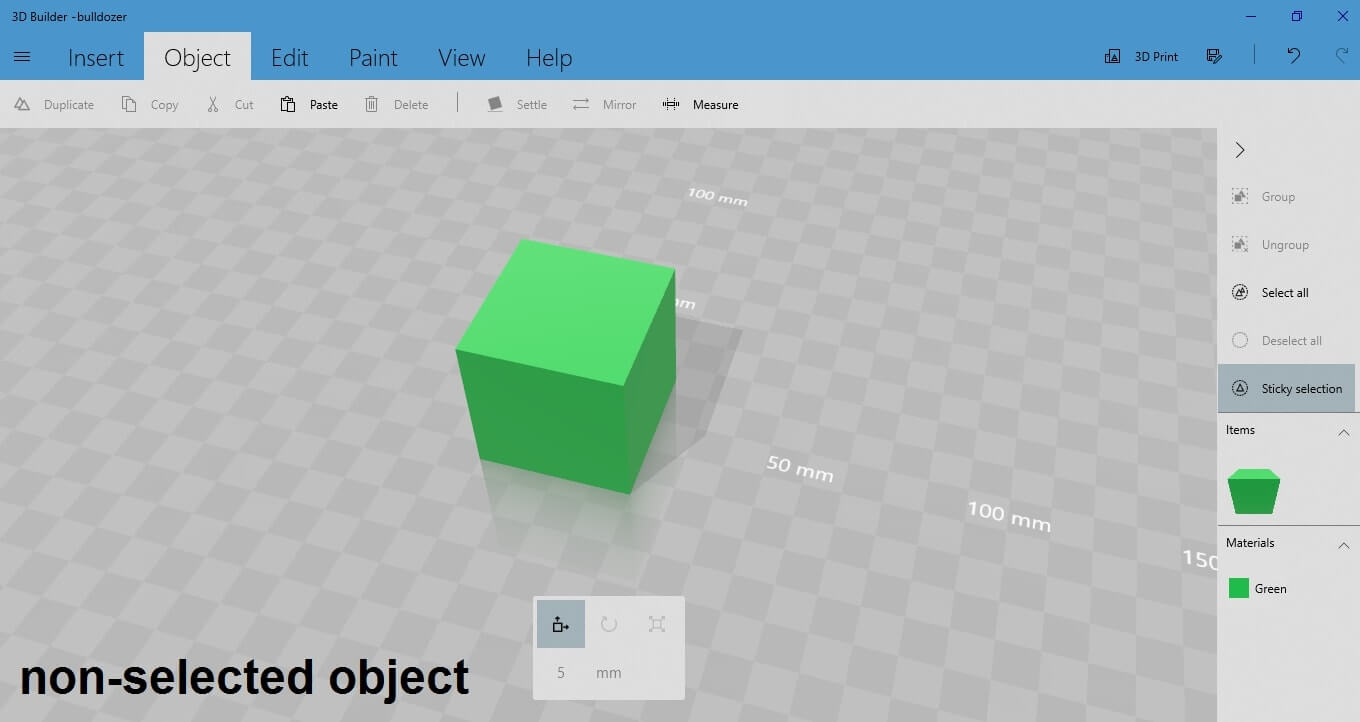
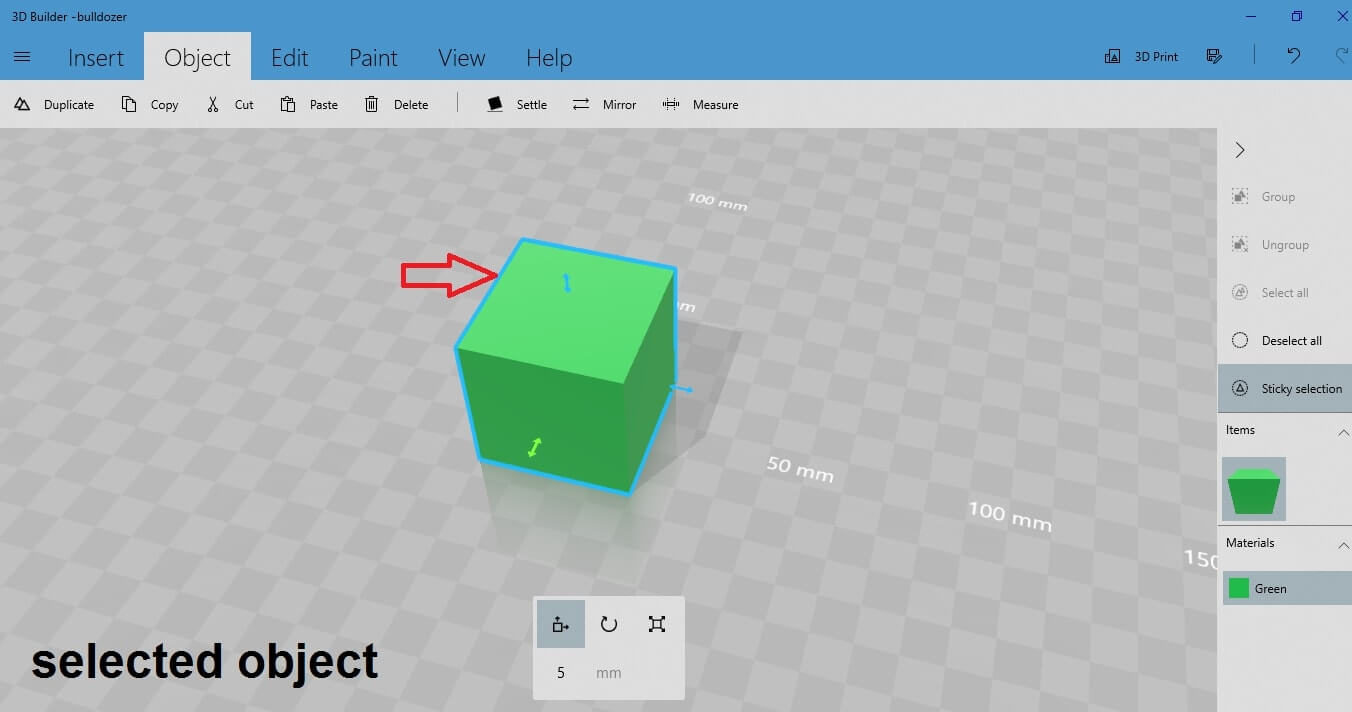
Notice that in the highlighted version of the 3D shape, there are some arrows around the object. These arrows indicate the 3 directions in which you can move your object around the workspace: up and down, left and right, back and forth.
At the bottom of your
The first option is about moving the 3D shape towards the selected direction.
You can select the direction by clicking on the arrow at the side of the cube.
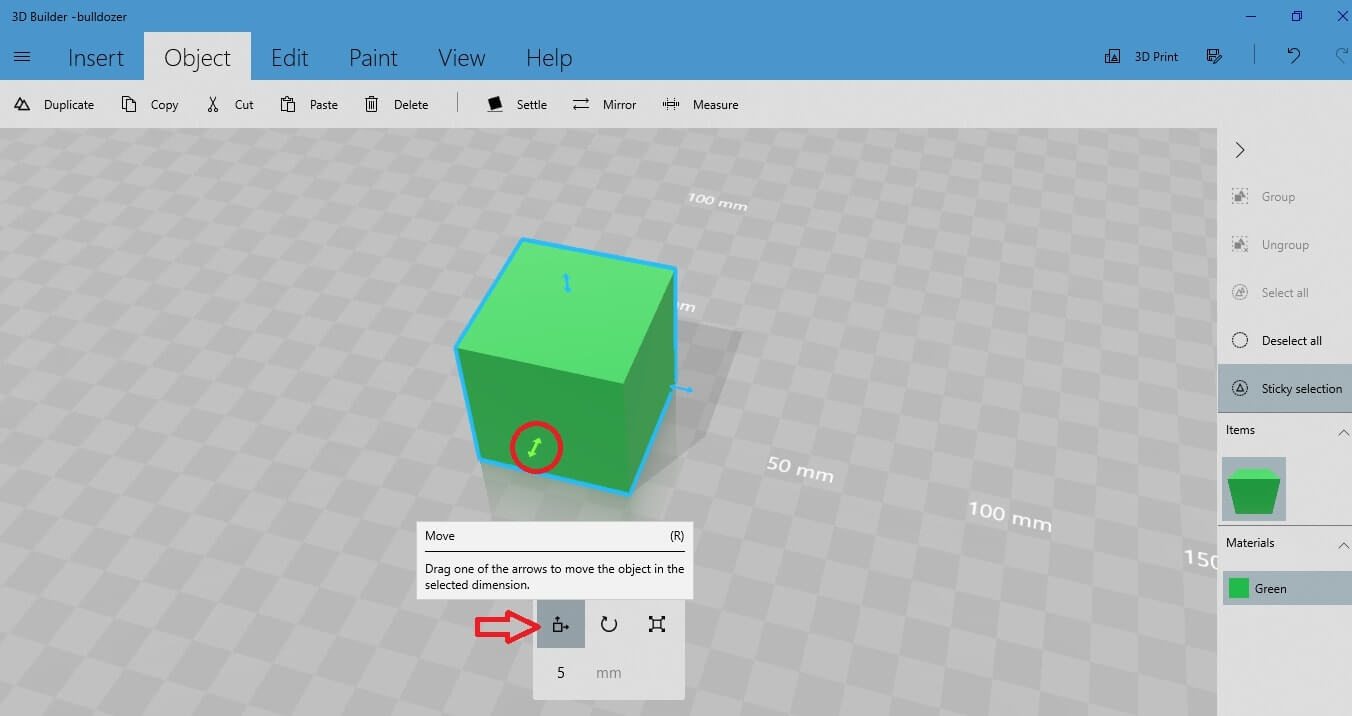
For example, if you want to move the cube back and forth in the workspace, click on the back and forth arrow to turn it green. Move the 3D shape by clicking and dragging the arrow with your mouse, or give a value to the relative field and press “enter”.
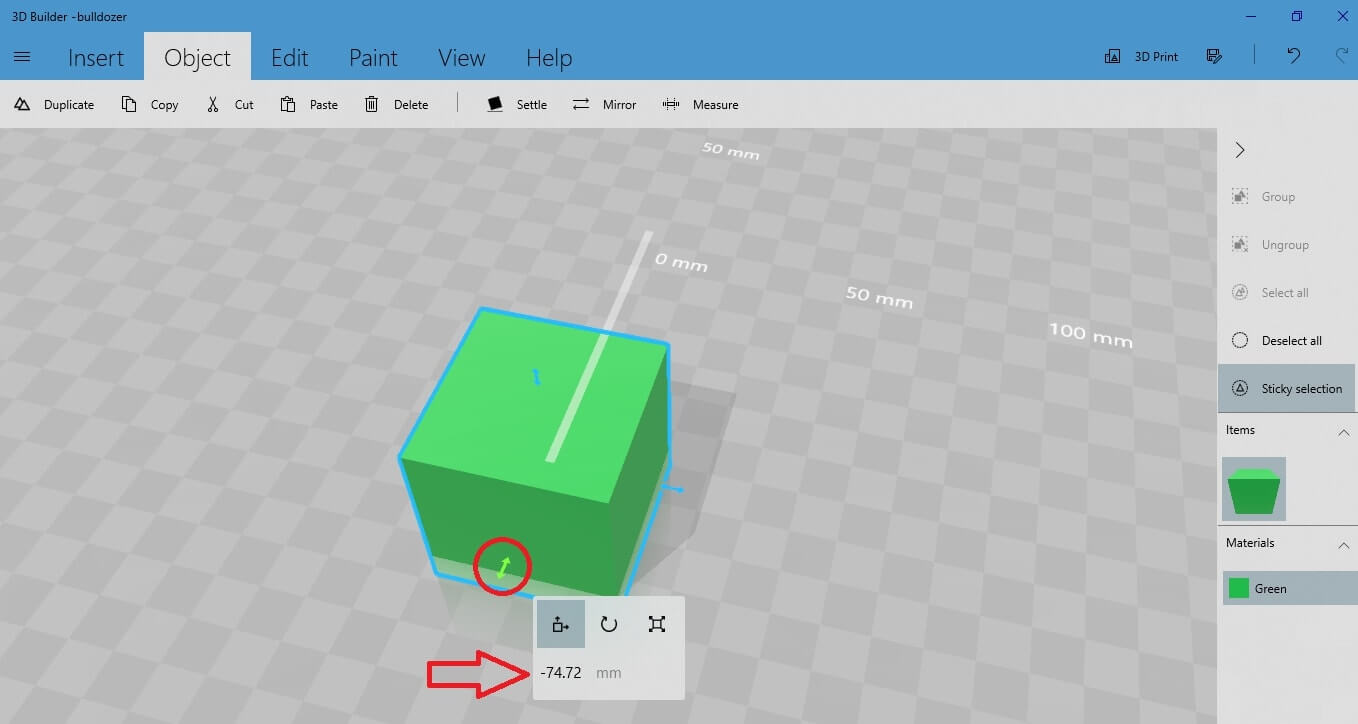
You can do that with all the three directions.
The second option is the ‘Rotate” option.
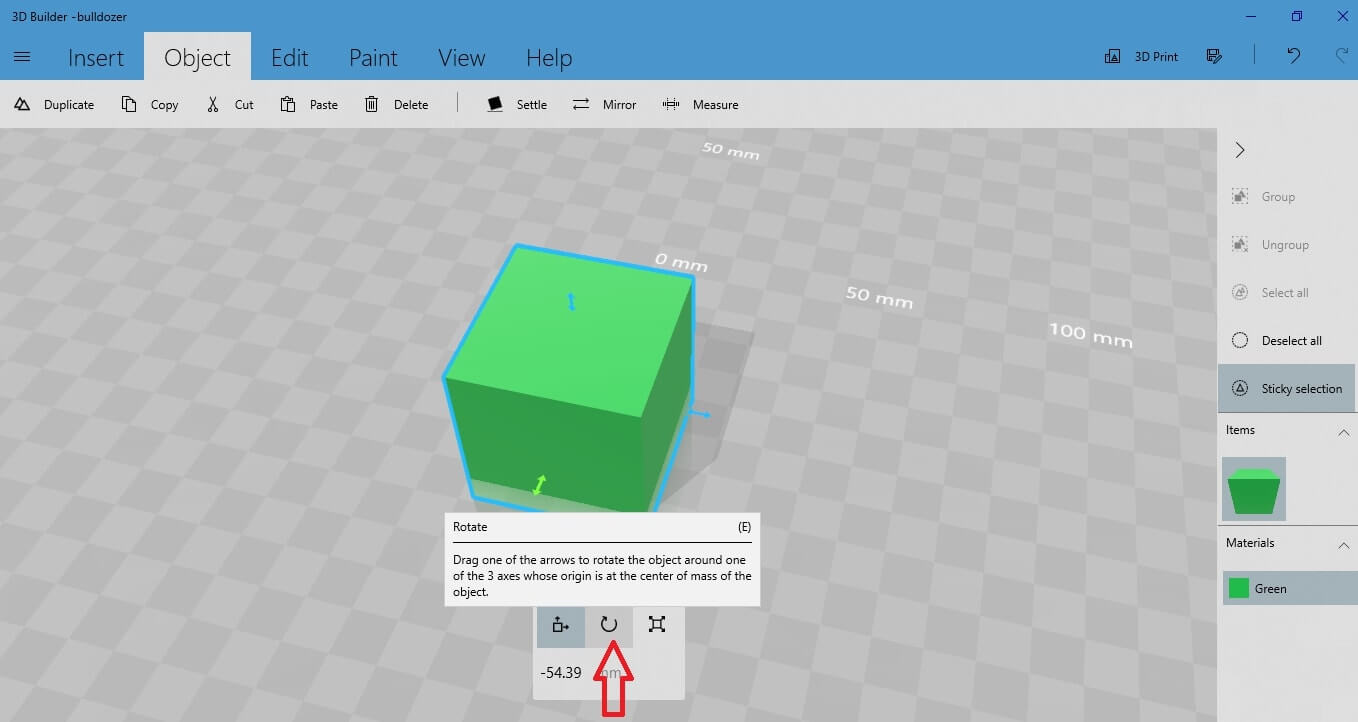
Select the “Rotate” option to activate the three rotating directions around the 3D shape.
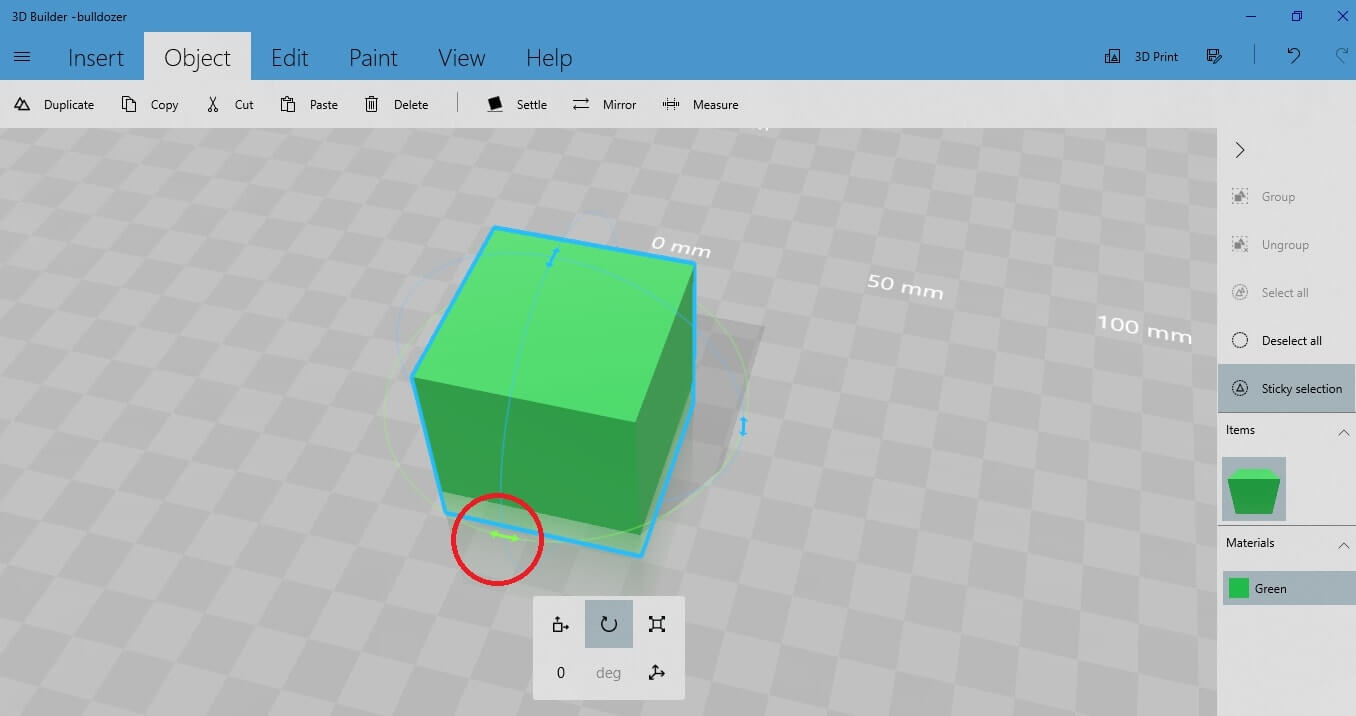
Select the direction you want to rotate your object around, by clicking on the arrow by the side of the cube. The selected arrow turns green so now you can drag it around. You can perform the same action by entering the precise value of the degrees you want to rotate your object around.
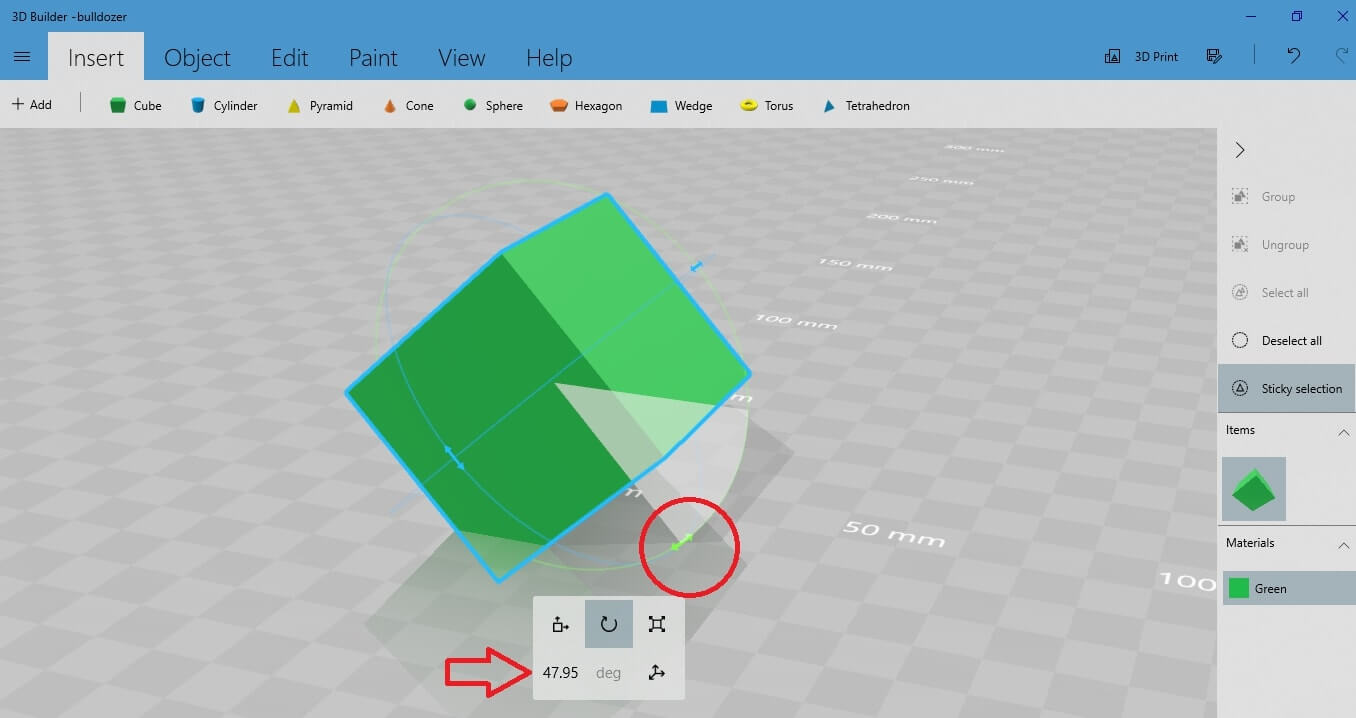
Moreover, you have the possibility to resize your object and give it the dimensions you want.
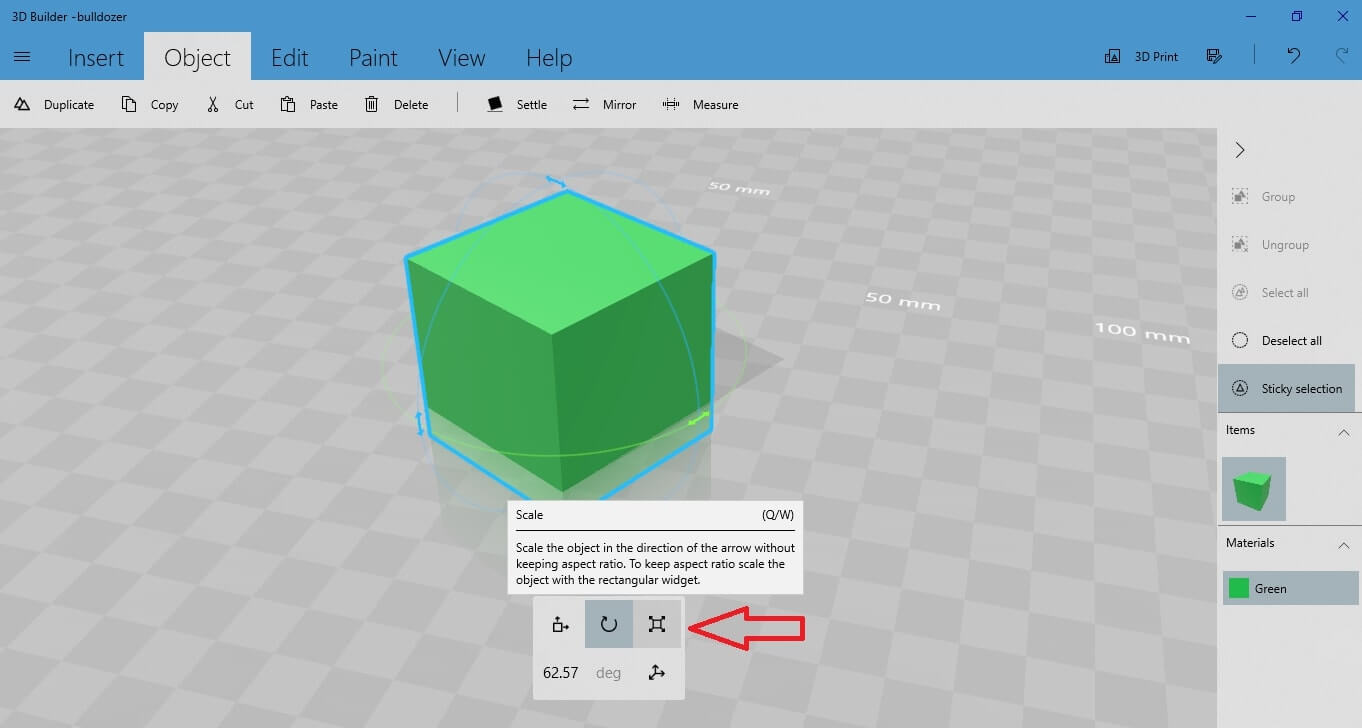
Let’s say for example that you want to edit the width of the cube. Select the scale button. Click on the arrow that corresponds to the dimension of the cube you want to edit. Drag the arrow towards the direction you want, to increase or decrease the width of the object.
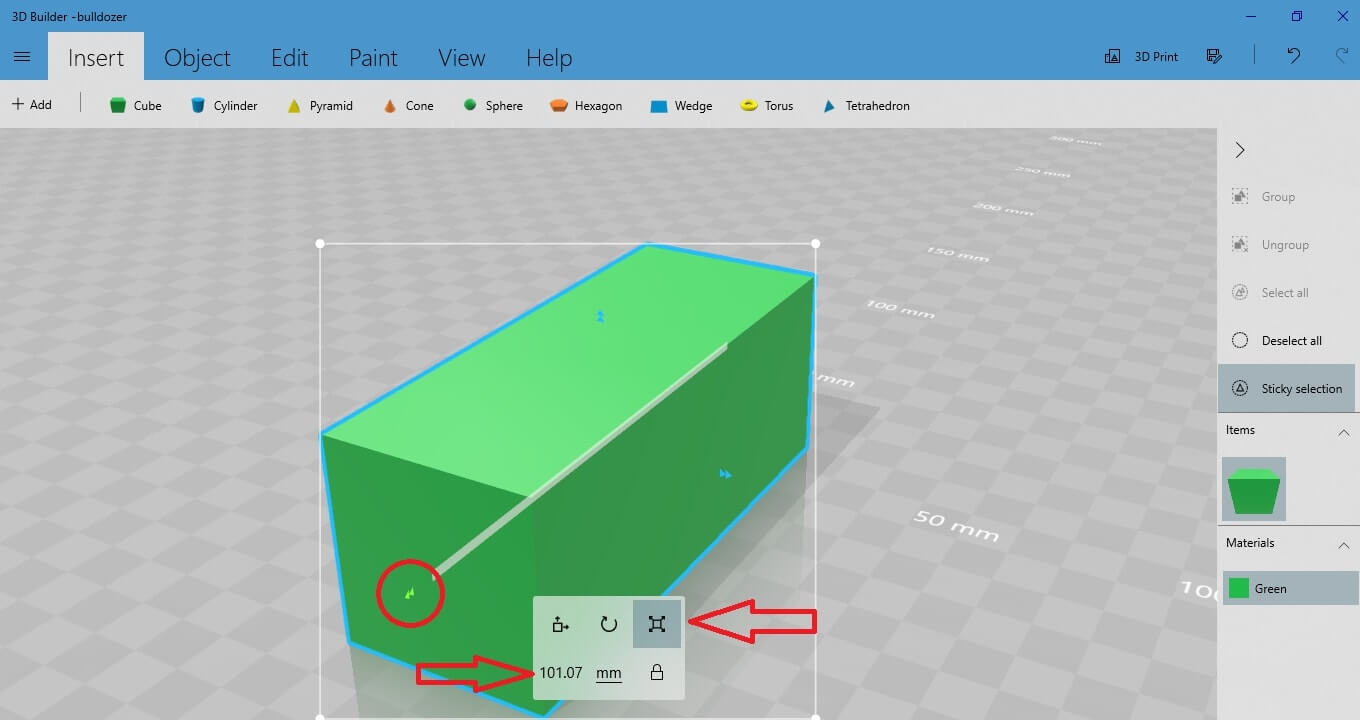
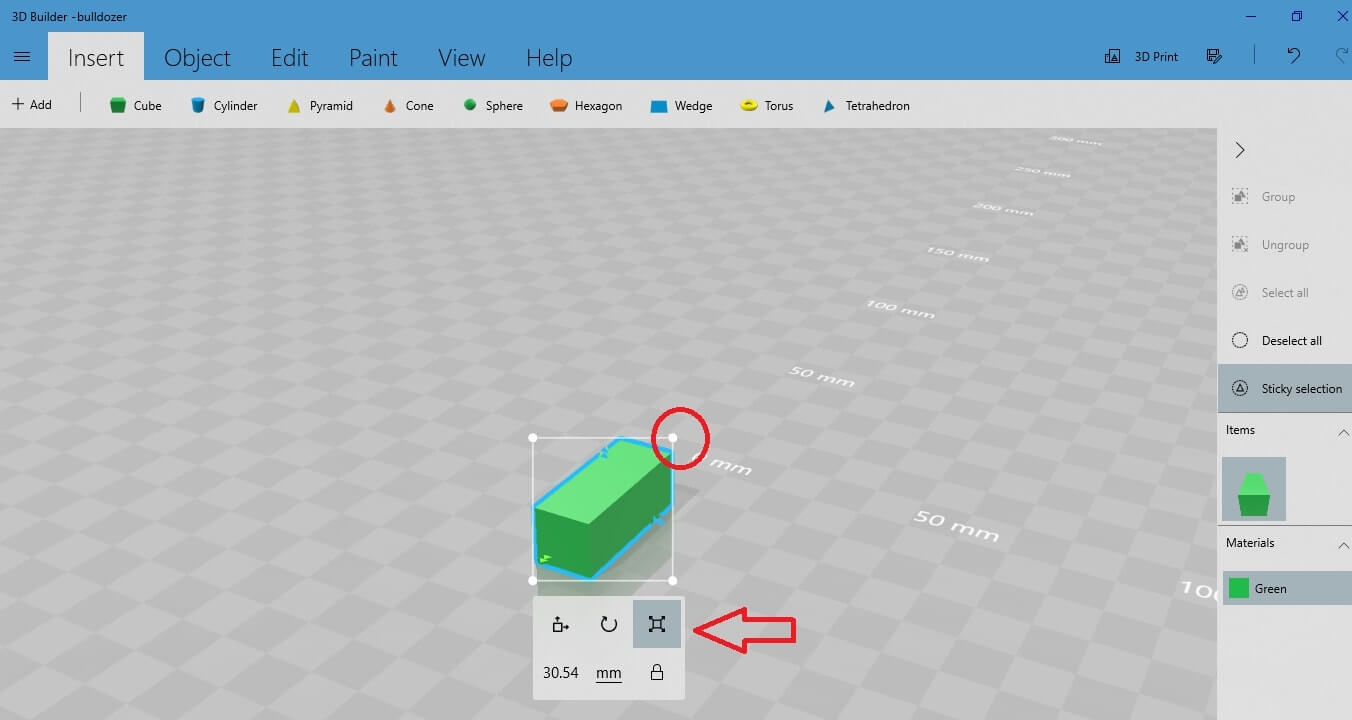
It is also possible to resize your object by keeping the scale ratio. In other words, you can keep the proportions of the shape and just adjust its scale.
To do so, click on the corner of the white frame that it created around the 3D shape and drag it in and out to resize the whole object.
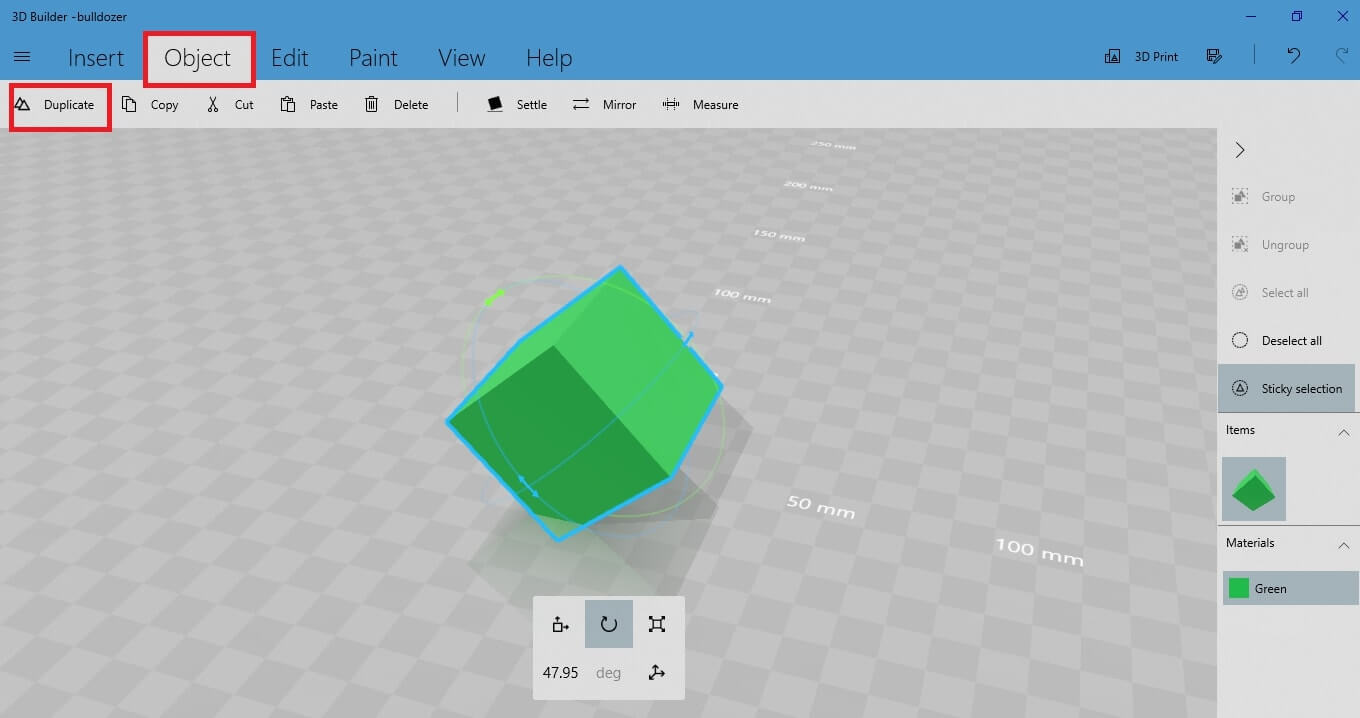
To duplicate your object, first you have to select it (so that the blue stroke appears around it). Then go to the upper toolbar and select the “Duplicate” option under the “Object” button.
 The cube is instantly duplicated.
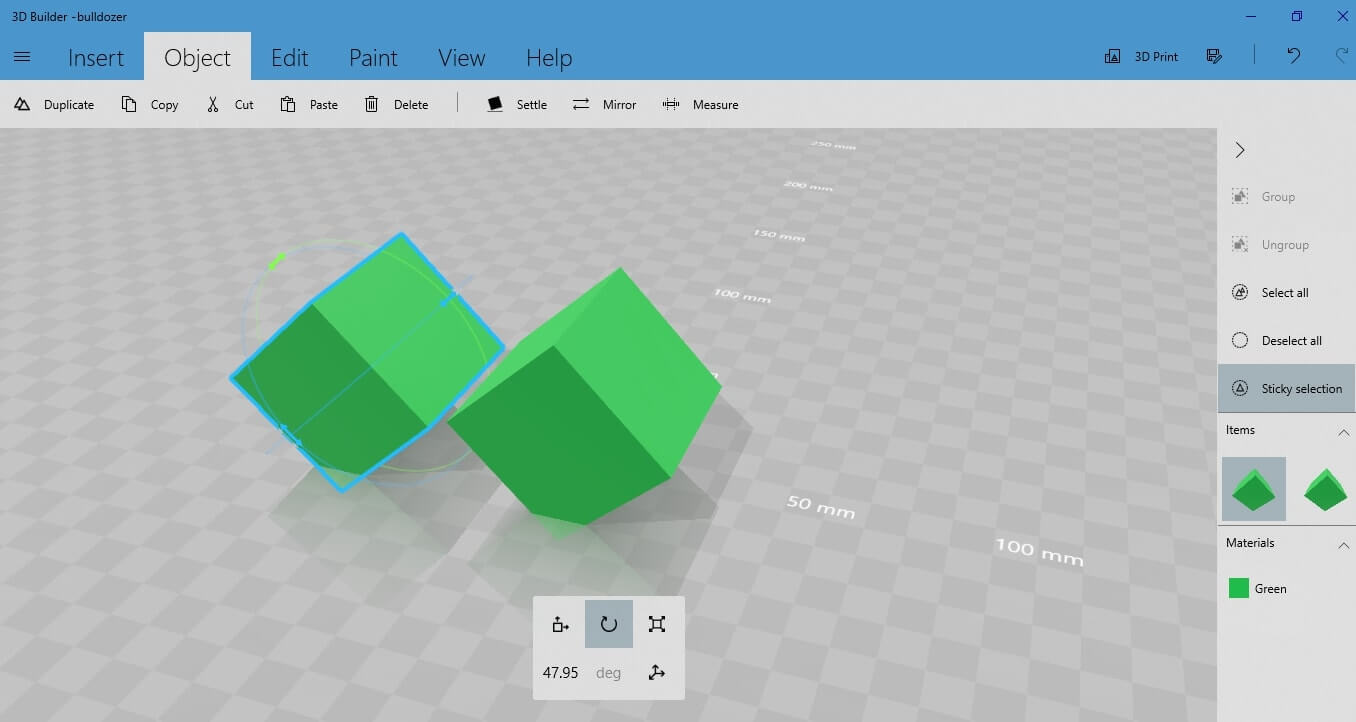 Now there are two objects on your workspace. Select the one you want to move around, rotate it and change its dimensions as you wish, as explained in the previous paragraphs (1.2 -1.4).
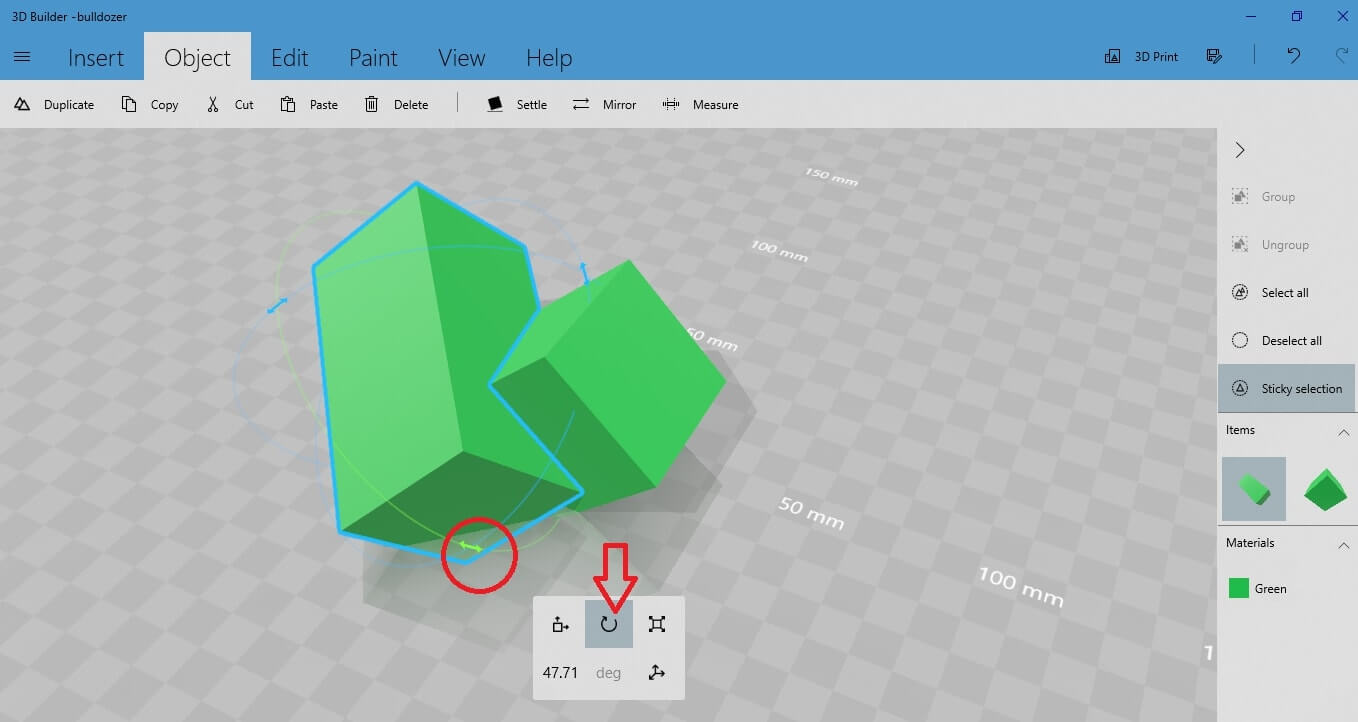 You can move or edit both the objects that are in the workspace at the same time.
To do so, select them both at the same time. Select the first object by left clicking on it, hold the “Shift” button and left click on the other object.
Now both objects have the blue stroke around them, which means they are both selected.
You can move or edit both the objects that are in the workspace at the same time.
To do so, select them both at the same time. Select the first object by left clicking on it, hold the “Shift” button and left click on the other object.
Now both objects have the blue stroke around them, which means they are both selected.
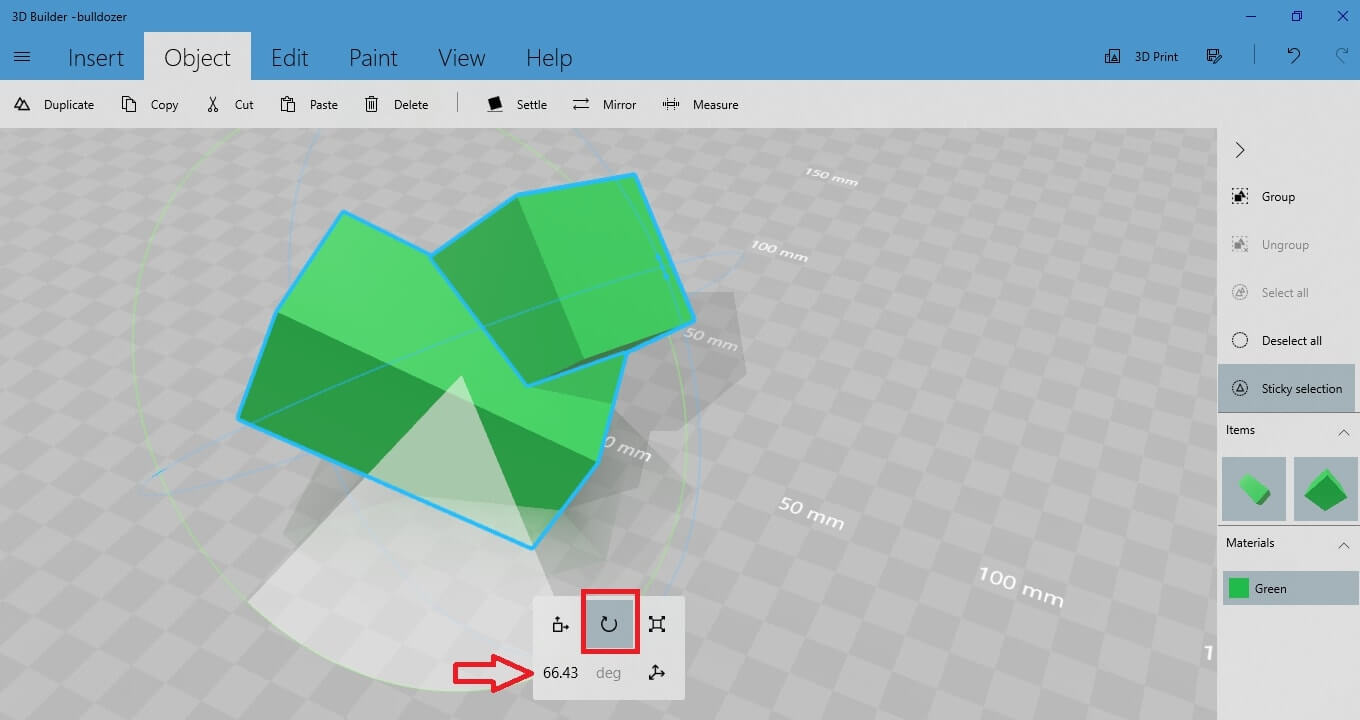
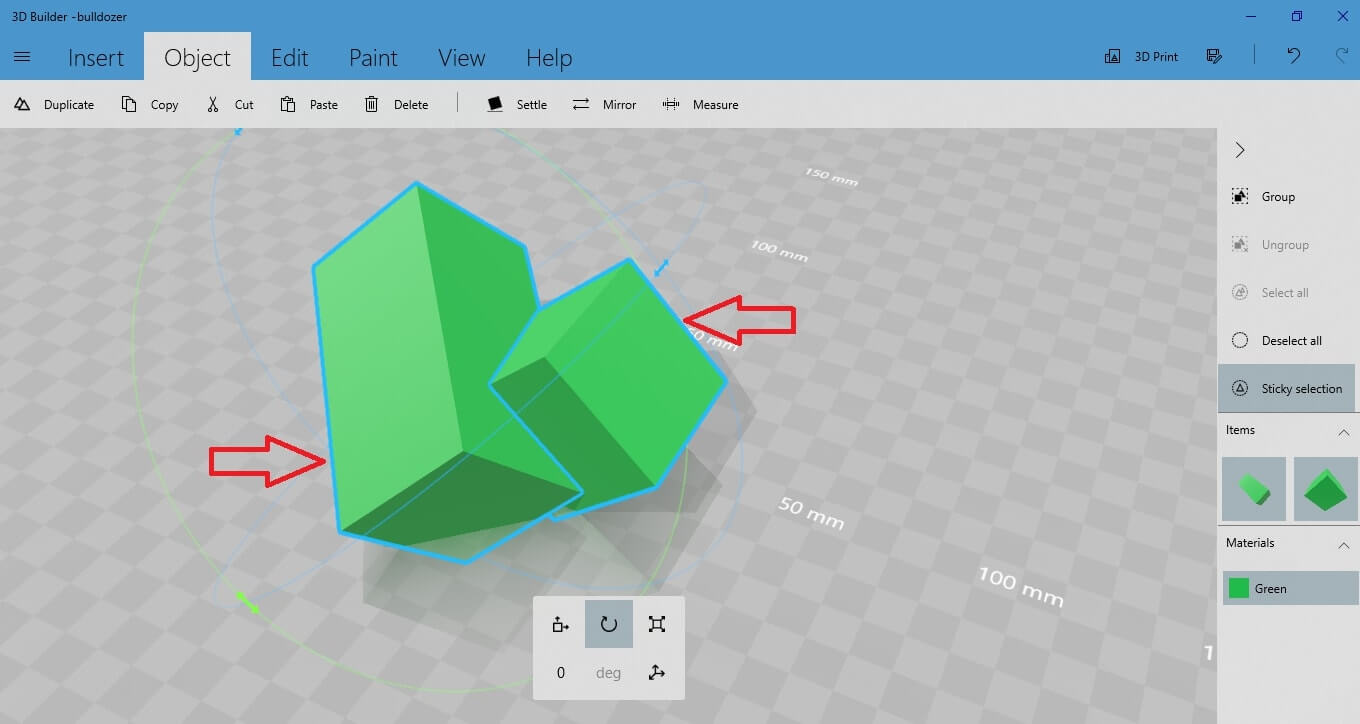 Let’s rotate both of them at the same time by enabling the rotating option from the table at the bottom of the screen.
 If you want to delete an object that is inserted in your workspace, just select it and press the delete button.
The cube is instantly duplicated.
Now there are two objects on your workspace. Select the one you want to move around, rotate it and change its dimensions as you wish, as explained in the previous paragraphs (1.2 -1.4).
You can move or edit both the objects that are in the workspace at the same time.
To do so, select them both at the same time. Select the first object by left clicking on it, hold the “Shift” button and left click on the other object.
Now both objects have the blue stroke around them, which means they are both selected.
If you want to delete an object that is inserted in your workspace, just select it and press the delete button.
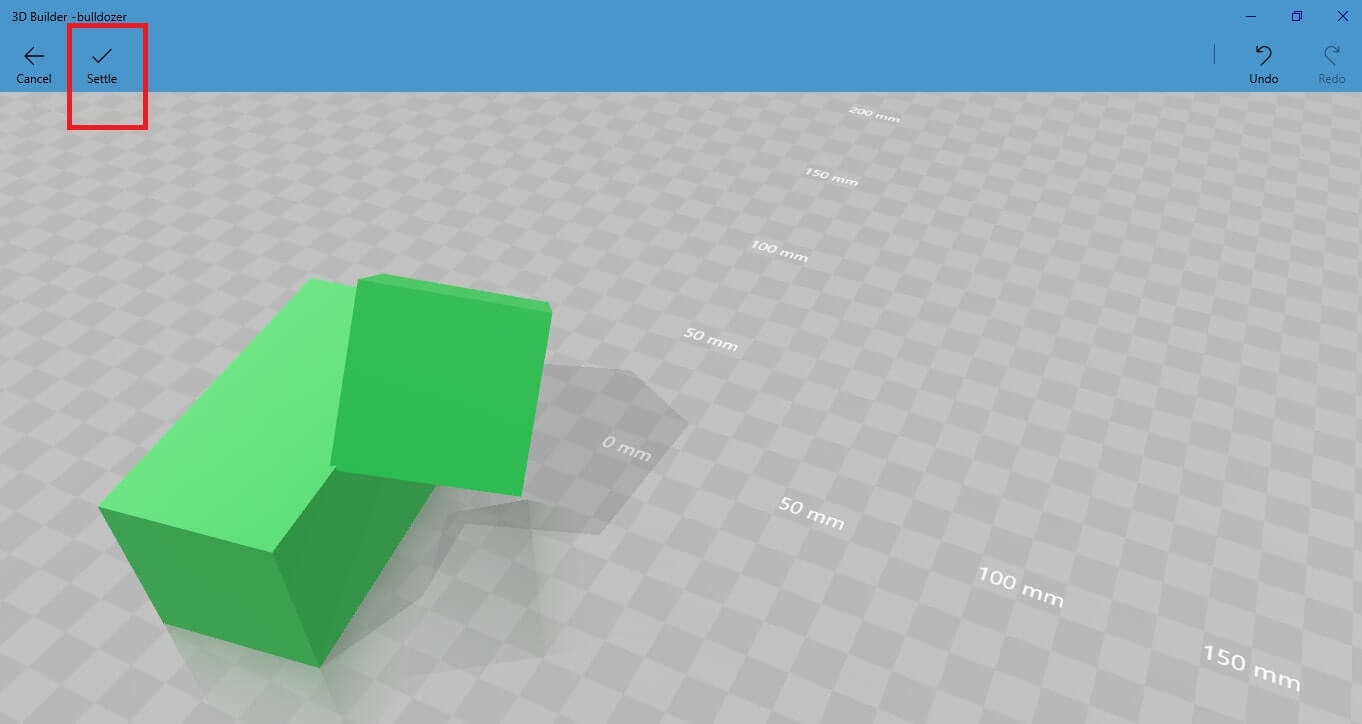
Go to the upper menu, select “Object” and then “Settle”.
This tool enables you to check if your object is stable, meaning that it can stand without supports. In this example, both the objects are rotated so their position is defined by an angle:
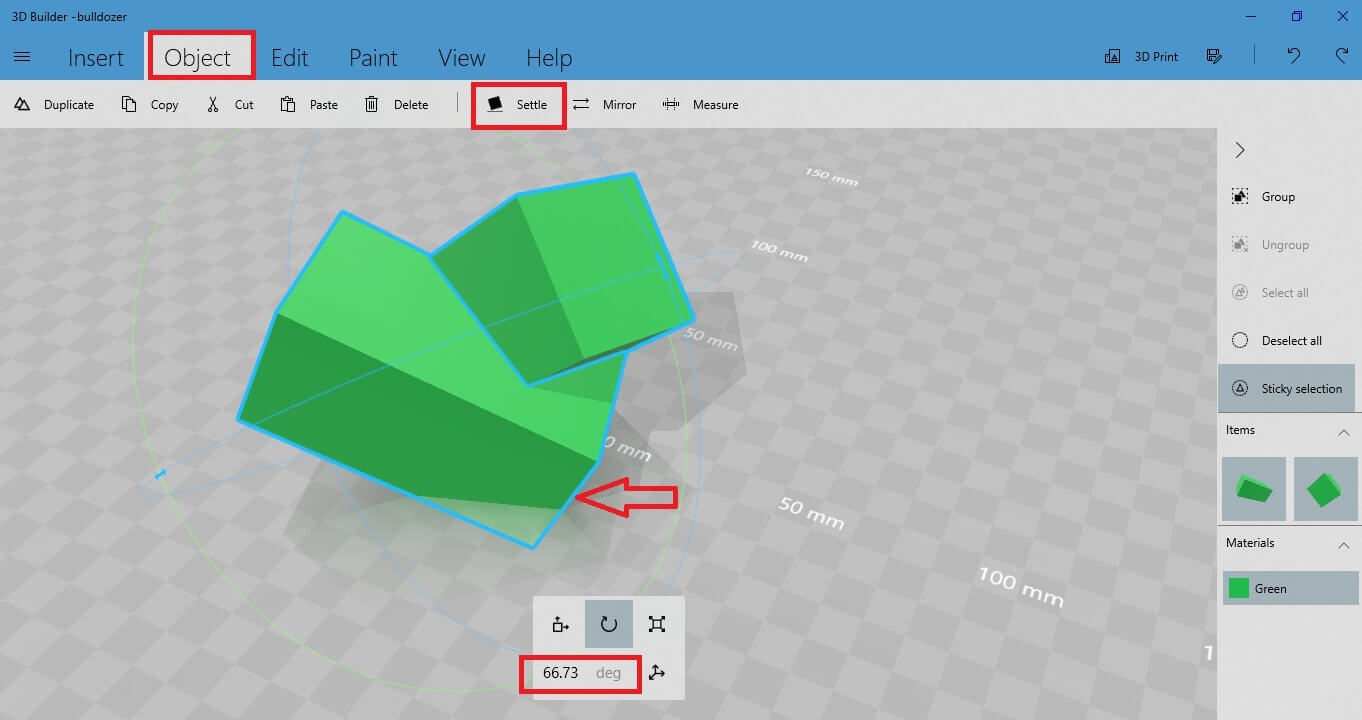 Press “Sette” and you will get this result:
 As you see, now the object stands on its whole surface, not on just an angle. This means that the objects are stable and they can stand.
However, it is possible to change the surface on which the objects are standing. Do that by left clicking on your objects and moving them around, until the objects find balance at a certain surface. For example, try to put them in this position:
As you see, now the object stands on its whole surface, not on just an angle. This means that the objects are stable and they can stand.
However, it is possible to change the surface on which the objects are standing. Do that by left clicking on your objects and moving them around, until the objects find balance at a certain surface. For example, try to put them in this position:
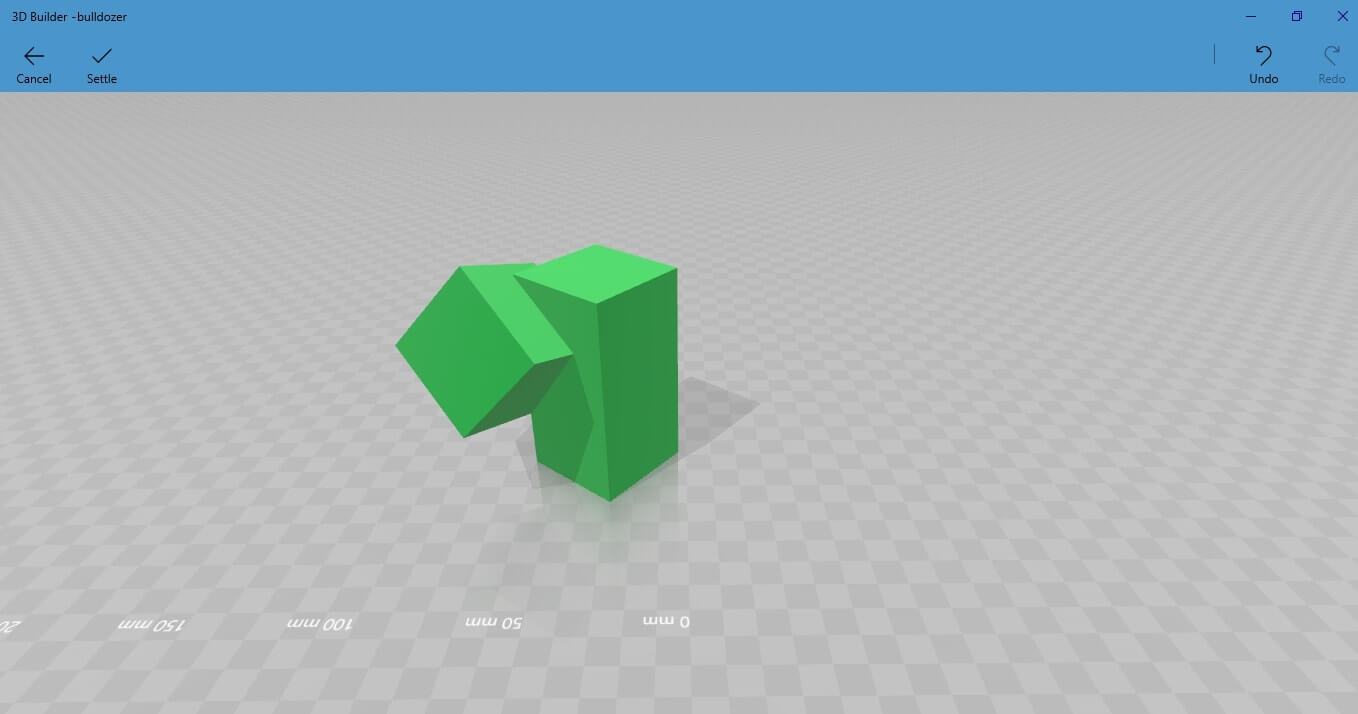 If you are satisfied with the new position, press “Settle” to return to the main workspace.
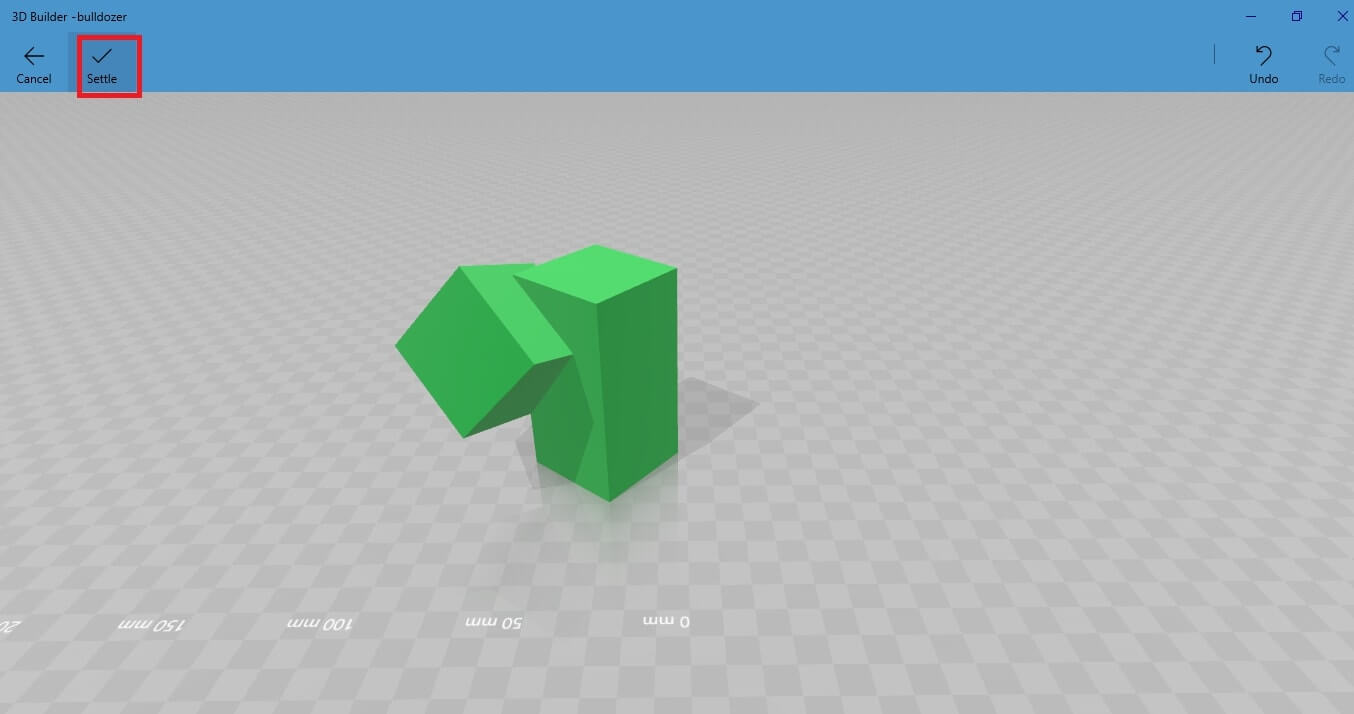
Press “Sette” and you will get this result:
As you see, now the object stands on its whole surface, not on just an angle. This means that the objects are stable and they can stand.
However, it is possible to change the surface on which the objects are standing. Do that by left clicking on your objects and moving them around, until the objects find balance at a certain surface. For example, try to put them in this position:
Go to the upper menu bar and select “Edit” and then “Split”. The “Split” option enables you to add a surface across the 3D model in order to cut out part of it.
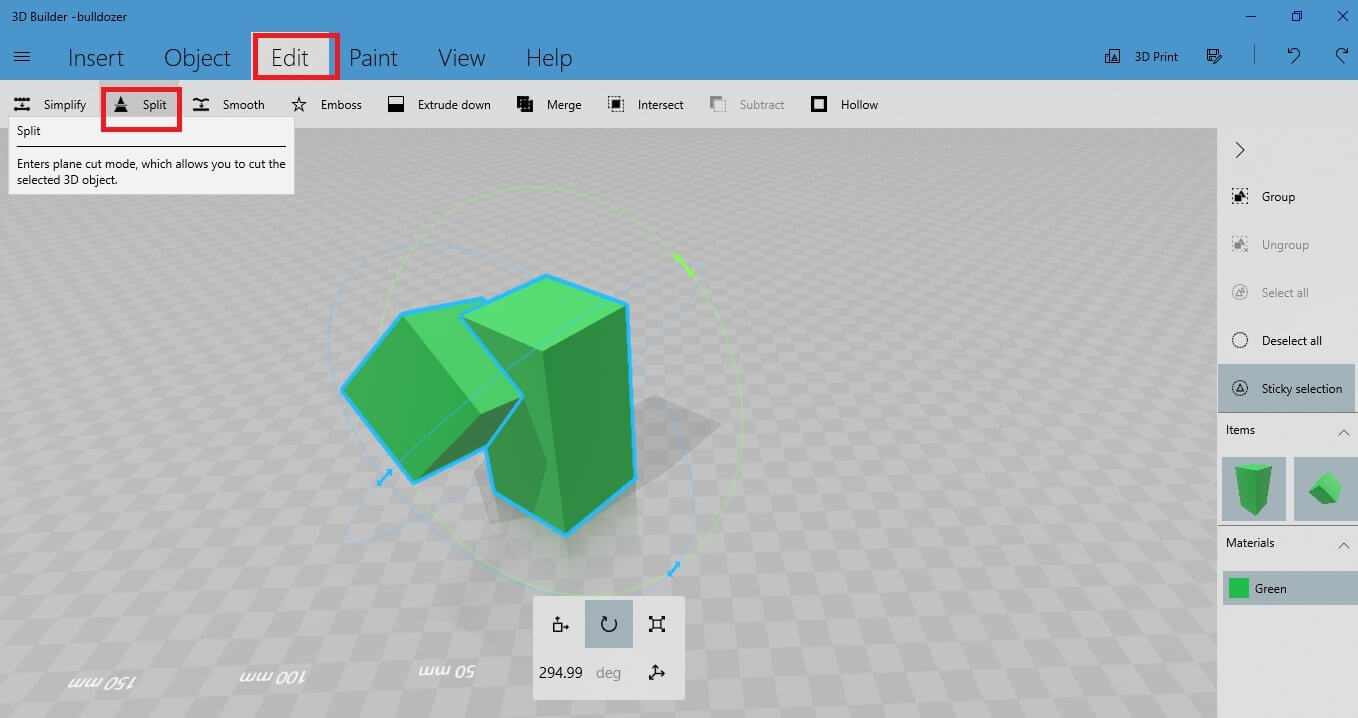 You will get this scene, where you can select among “Keep Top”, “Keep Bottom” and “Keep Both”. Let’s select “Keep Bottom”. This action keeps only the parts underneath the
 surface, and deletes the parts above the surface.
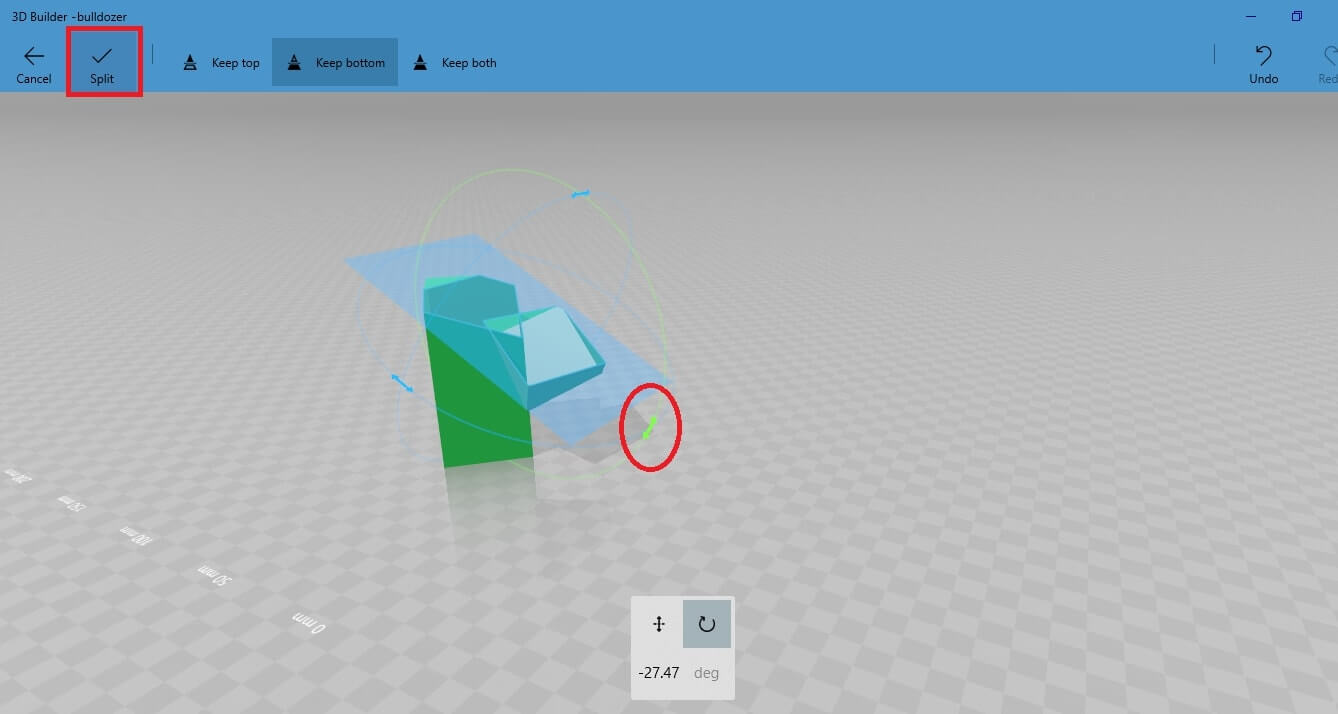
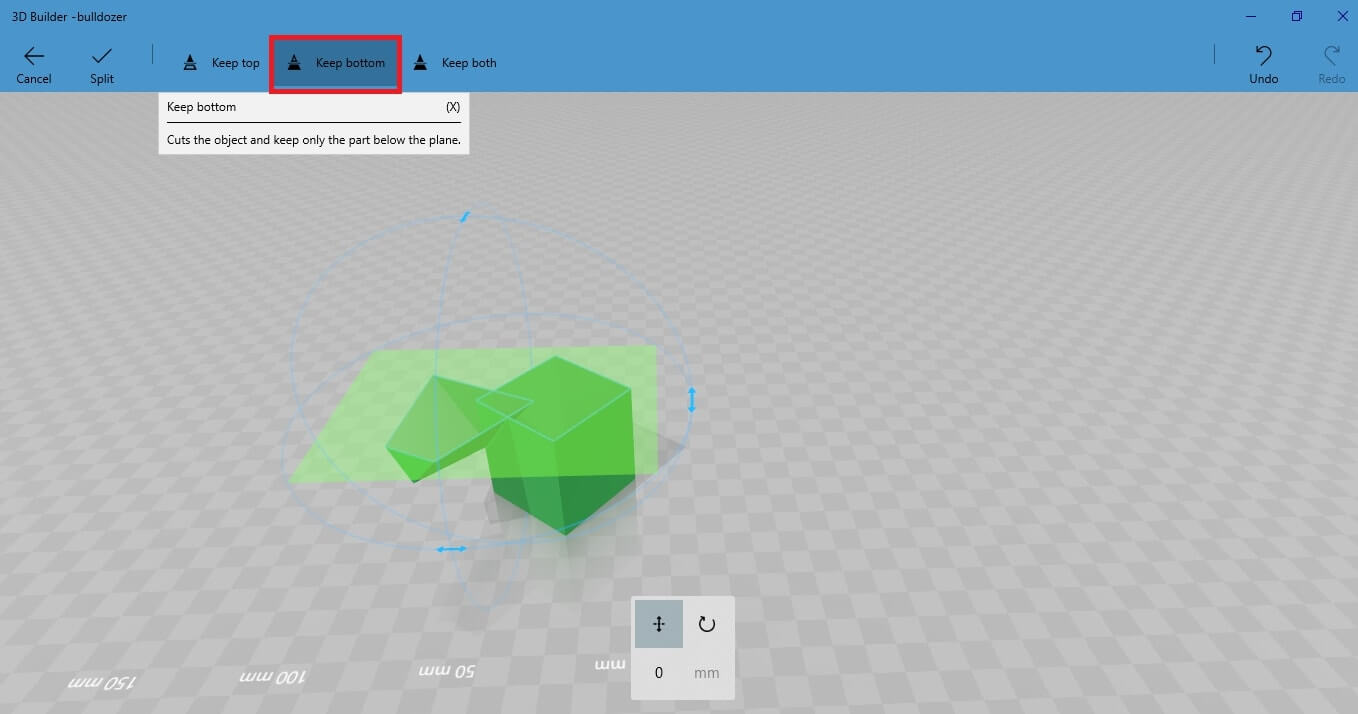 You can change the rotation or the direction of the surface. To do so, go to the table at the bottom of the screen.
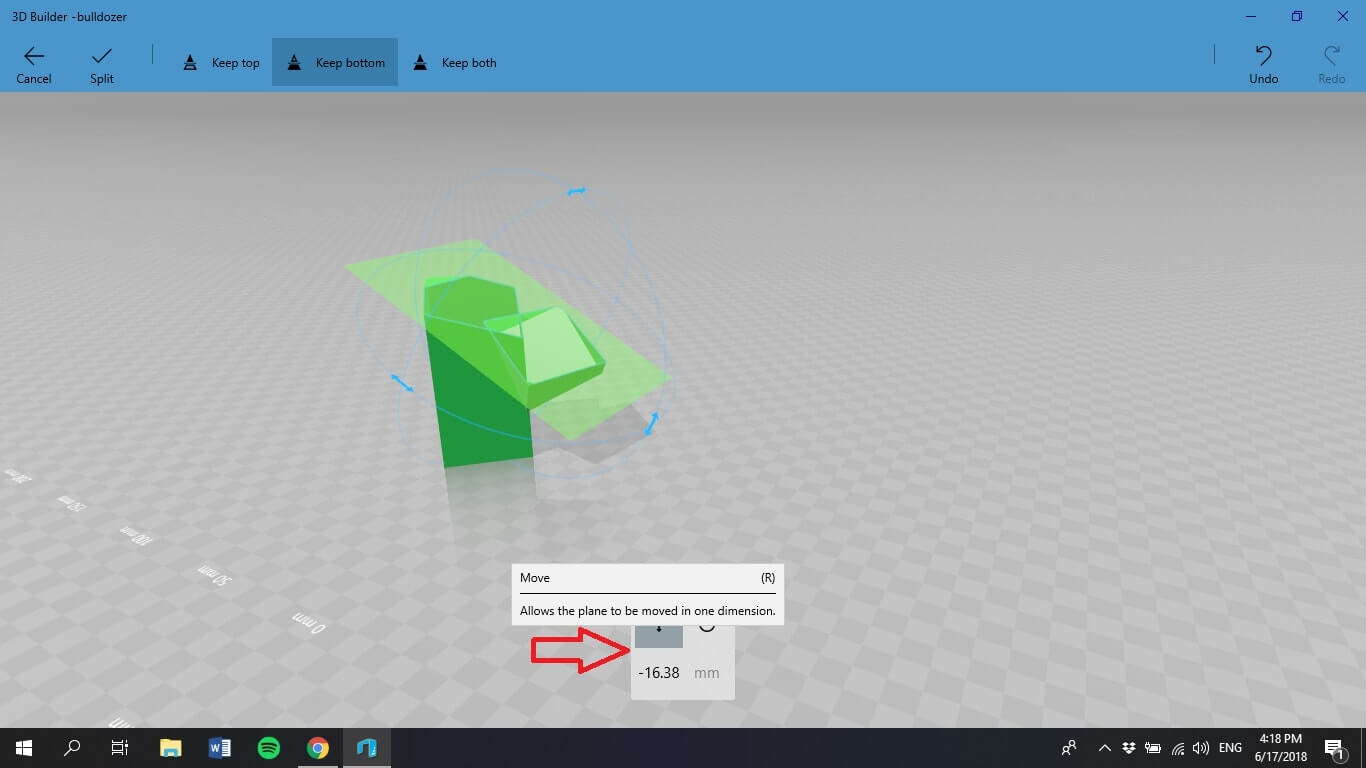 Once you are done with the adjustments of the cutting surface, validate the splitting and return to the main workspace.
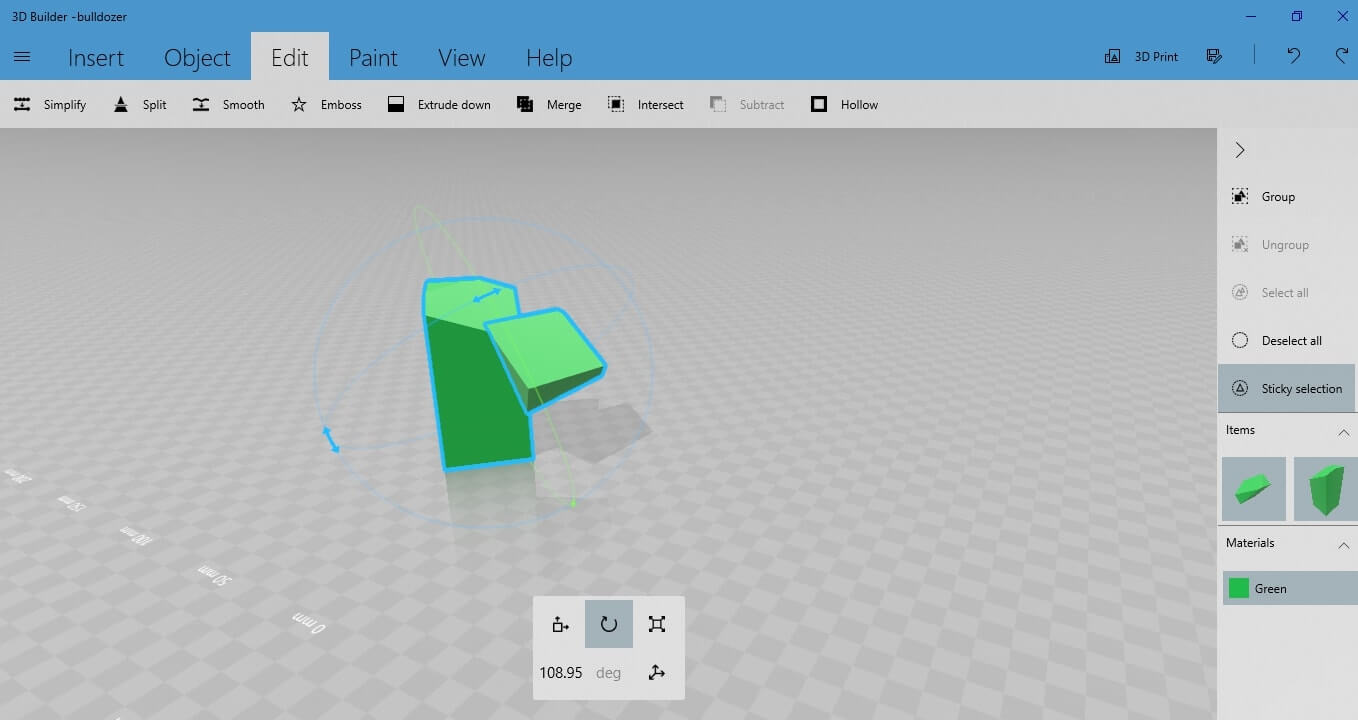
You will get this scene, where you can select among “Keep Top”, “Keep Bottom” and “Keep Both”. Let’s select “Keep Bottom”. This action keeps only the parts underneath the
You can change the rotation or the direction of the surface. To do so, go to the table at the bottom of the screen.
Once you are done with the adjustments of the cutting surface, validate the splitting and return to the main workspace.
Go to the upper menu bar and select “Smooth” under the “Edit” button. This tool enables you to smooth the surface and the angles of your objects.
To see the difference between a smoothed surface and a non-smoothed surface, let’s smooth only one out of the two objects.
Select the right 3D shape and press “Smooth”.
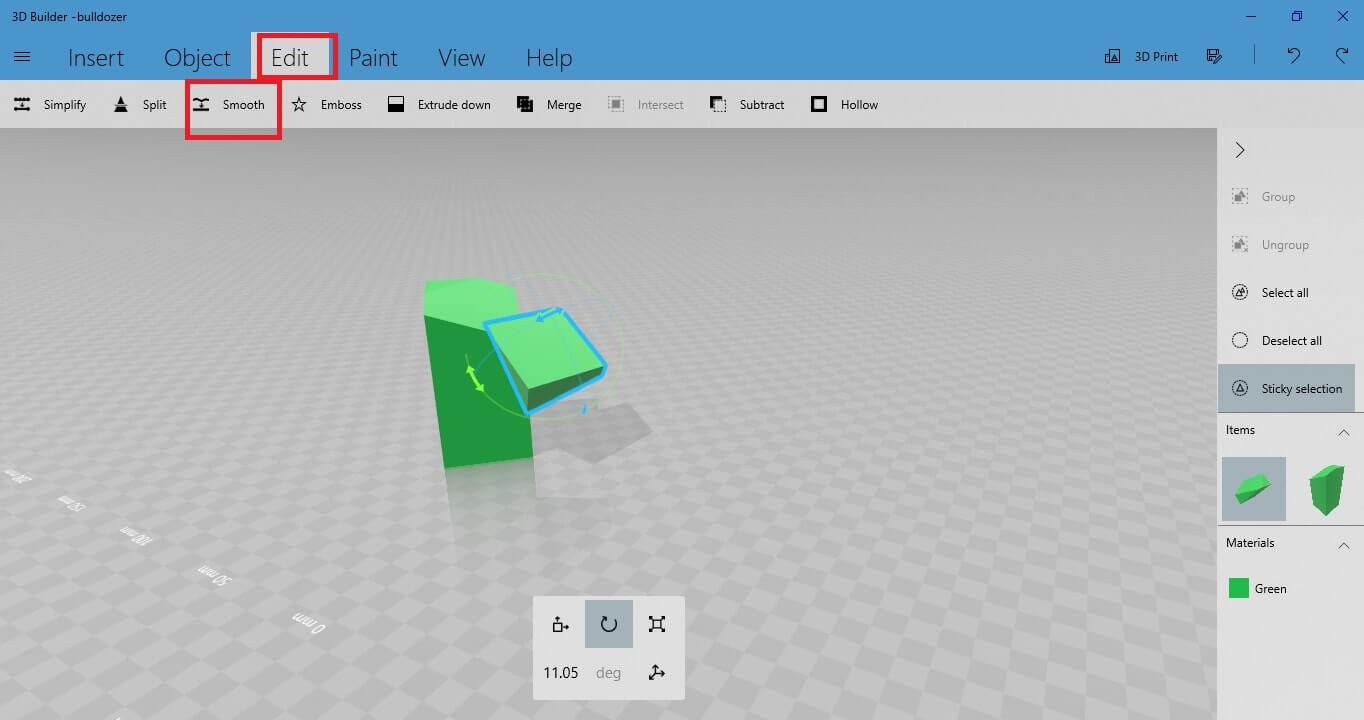 The workspace you will be redirected is this one:
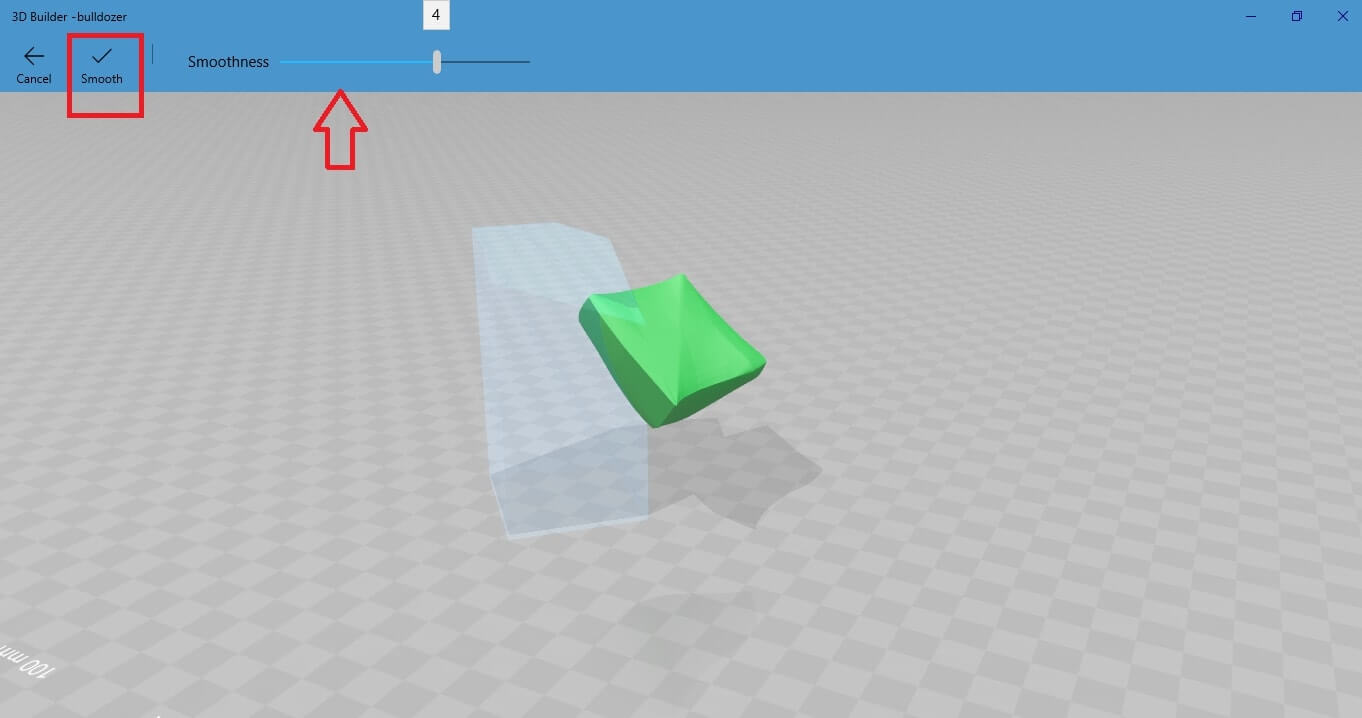
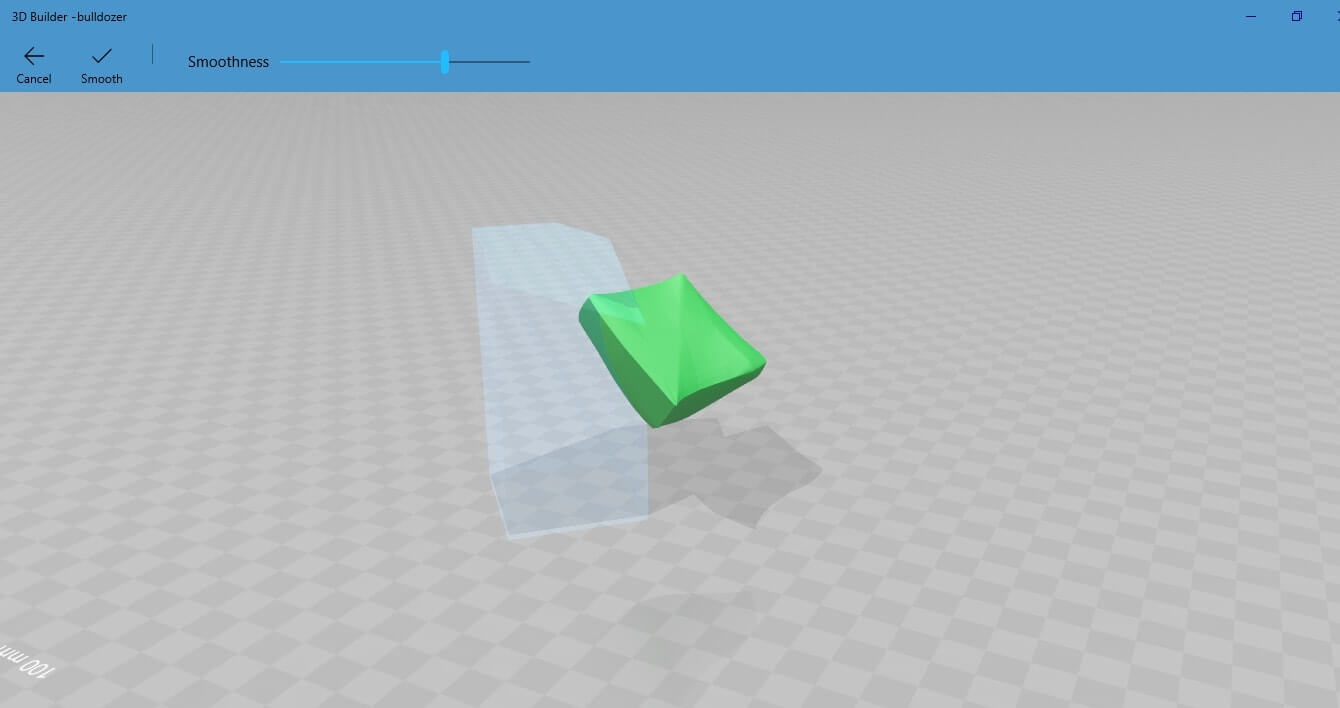 Select the level of the smoothness by dragging the smoothness bar: If you want the object’s surface to be somewhat rough select
 1, if you want a higher level of smoothness set it to 6.
Set it to 4 and press enter.
 Now you see the difference between the smoothed object (on the right) and the non-smoothed object (on the left)
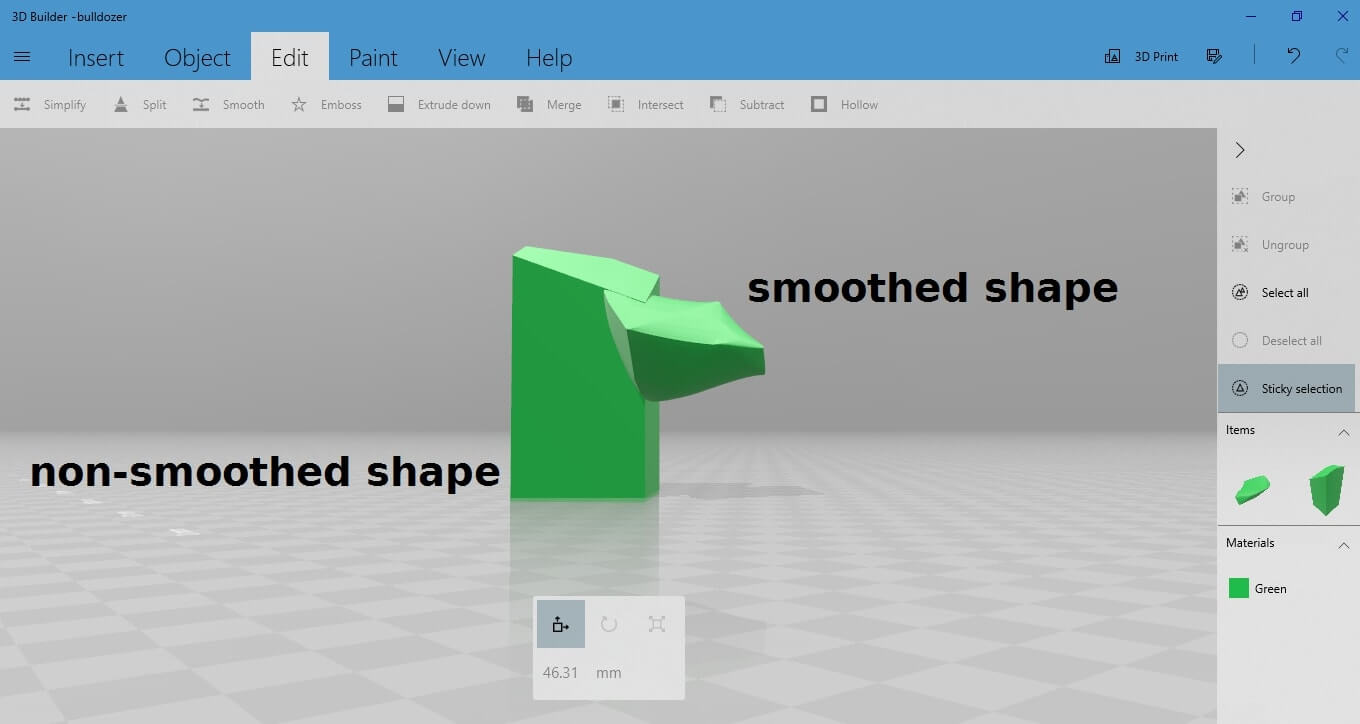
Now you see the difference between the smoothed object (on the right) and the non-smoothed object (on the left)
Go to the upper menu bar and select the “Emboss” option under the “Edit” button. The “Emboss” option allows you to add text to your 3D part. This is a very helpful tool that enables you to personalize your 3D project with adding any text you want: your own name, your company name or even a quote.
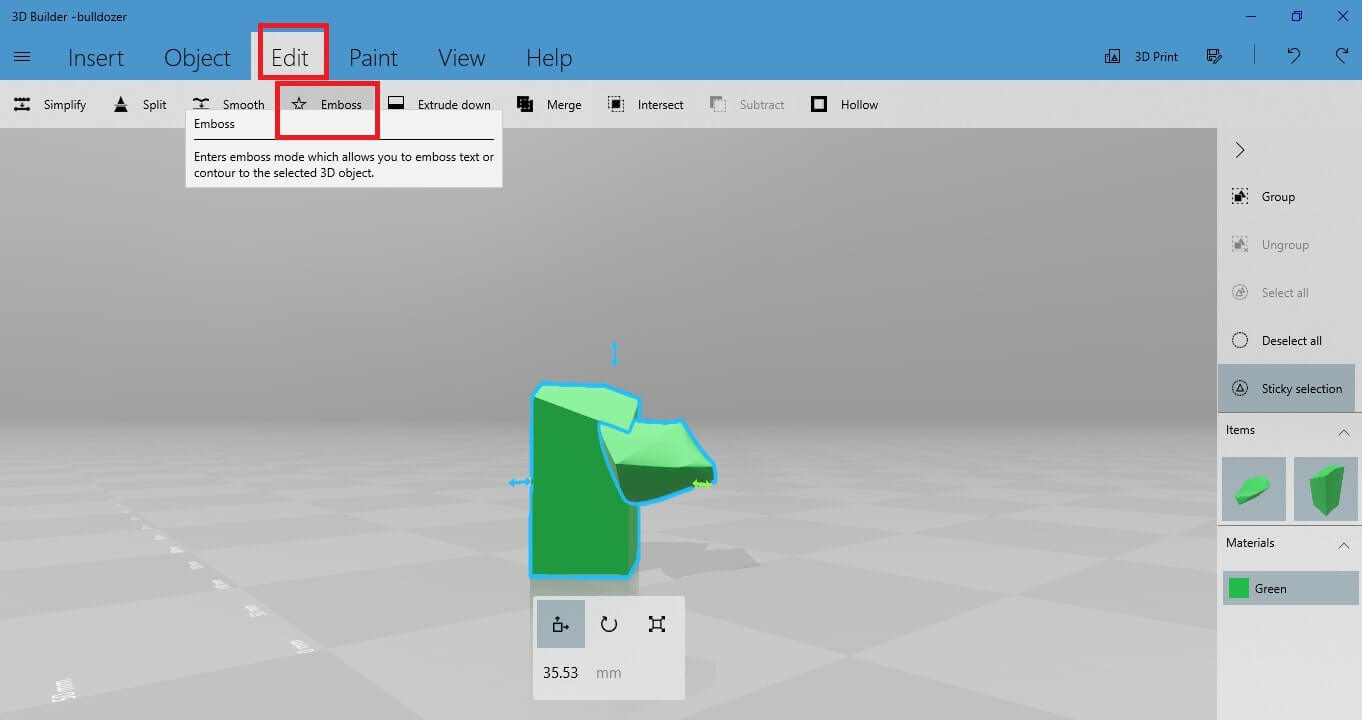 In the “Text” field type the text you want to insert. For example, let’s type the company’s name “Sculpteo”.
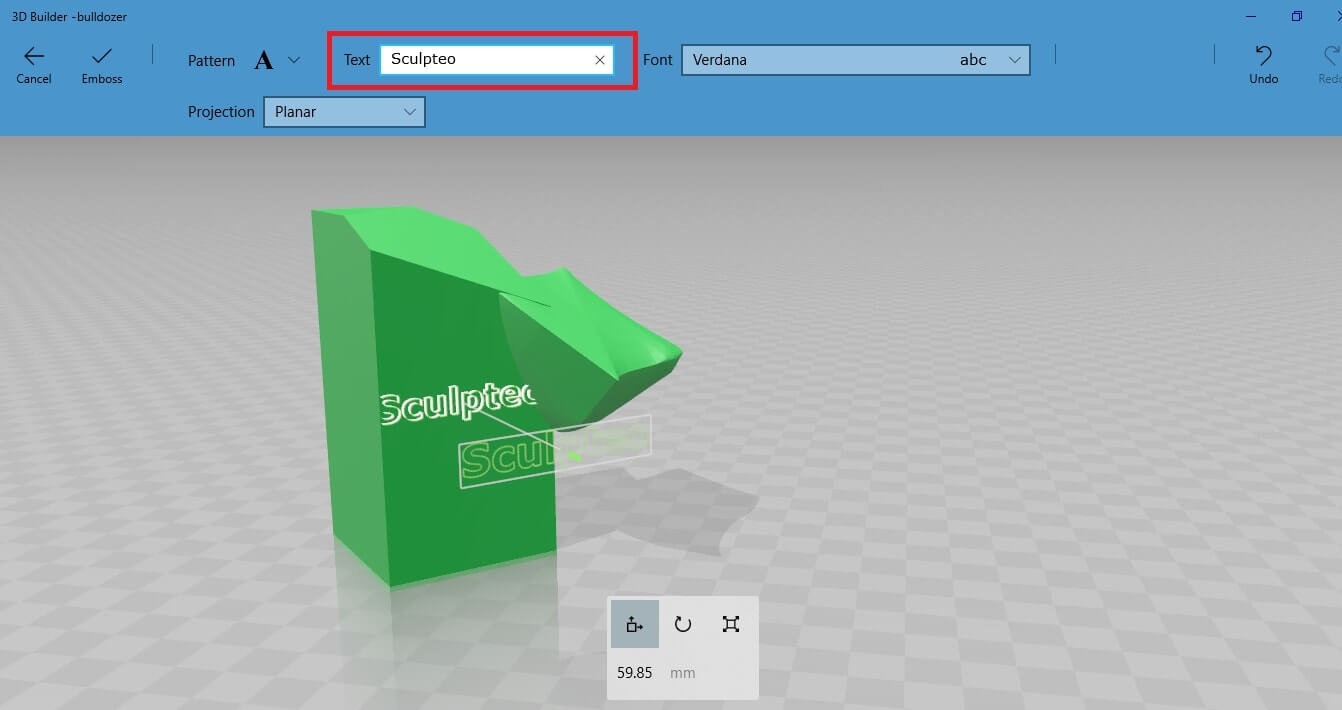 Select the font you want.
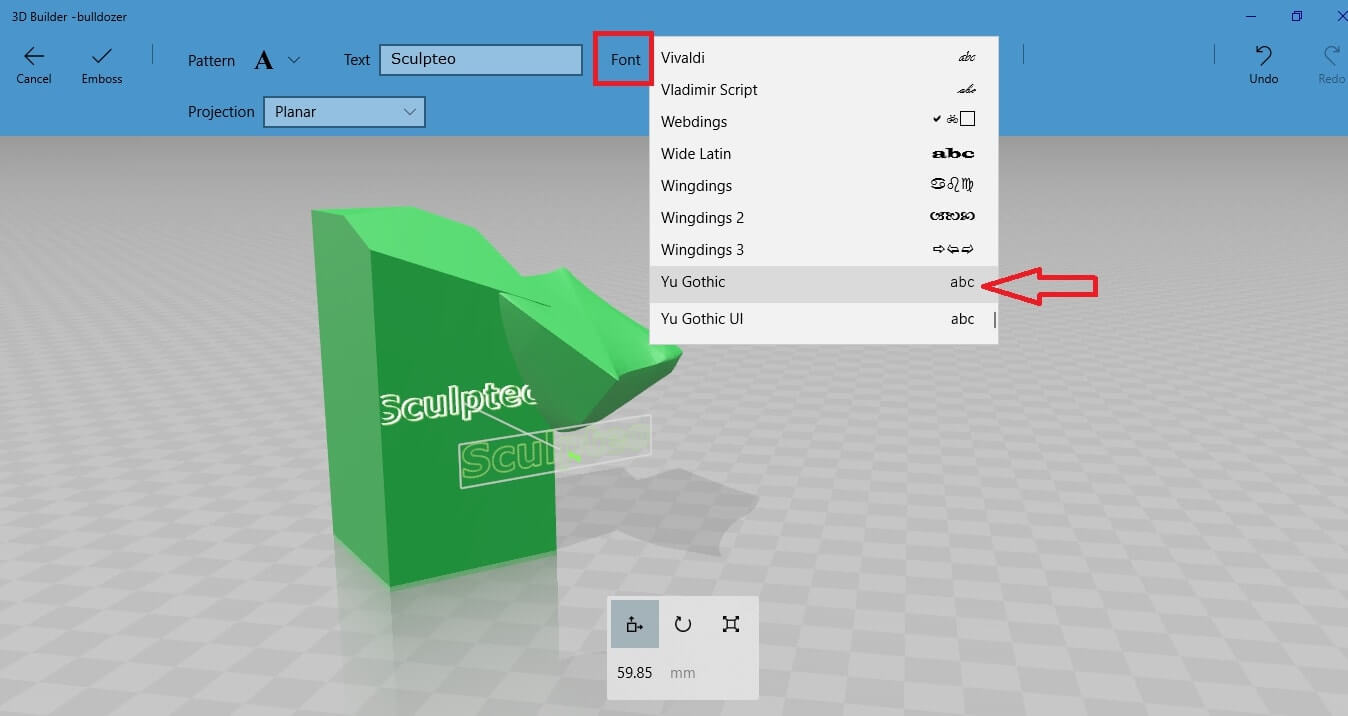 Select the projection mode for your text. Select between Planar, Cylindrical or Spherical.
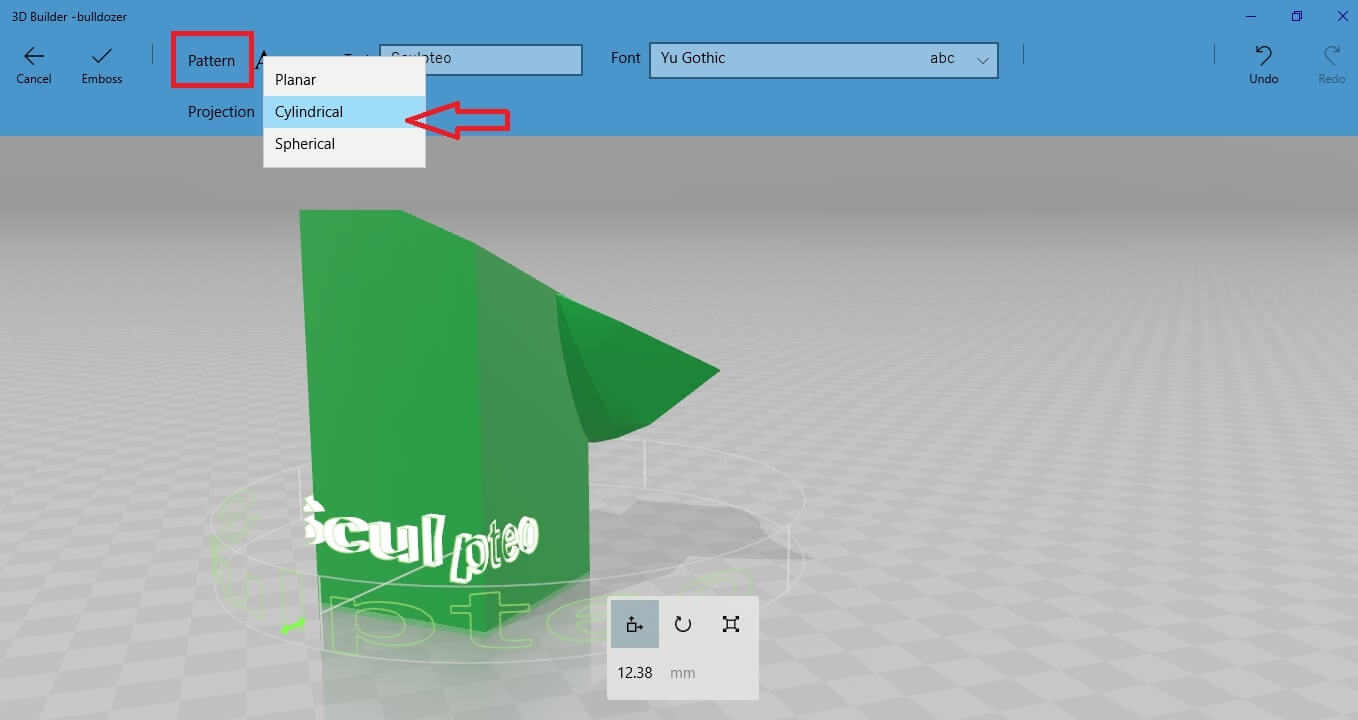 Let’s select the planar version, as it’s the simplest one for this case. Move the text around to find the location where you want to place it.
Select the “Scale” button and drag the green arrow to increase the extrusion of the text so as to make the text visible.
Let’s select the planar version, as it’s the simplest one for this case. Move the text around to find the location where you want to place it.
Select the “Scale” button and drag the green arrow to increase the extrusion of the text so as to make the text visible.
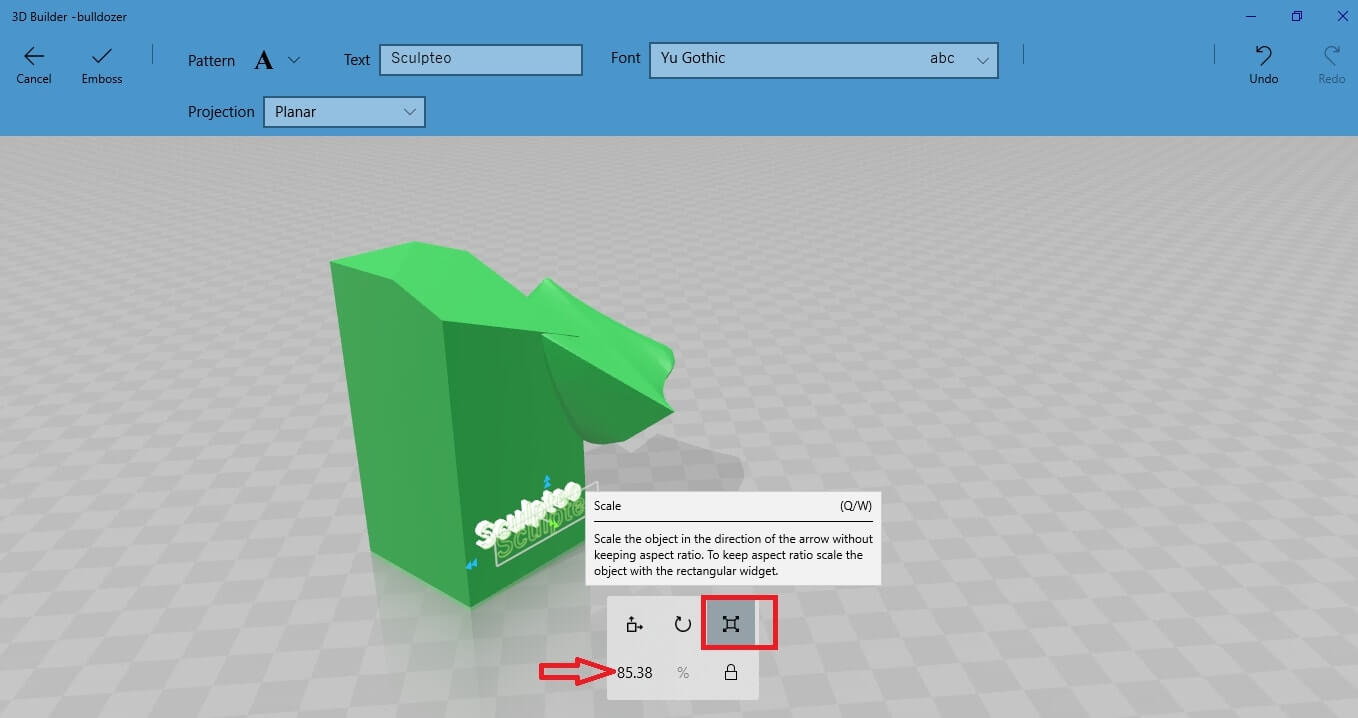
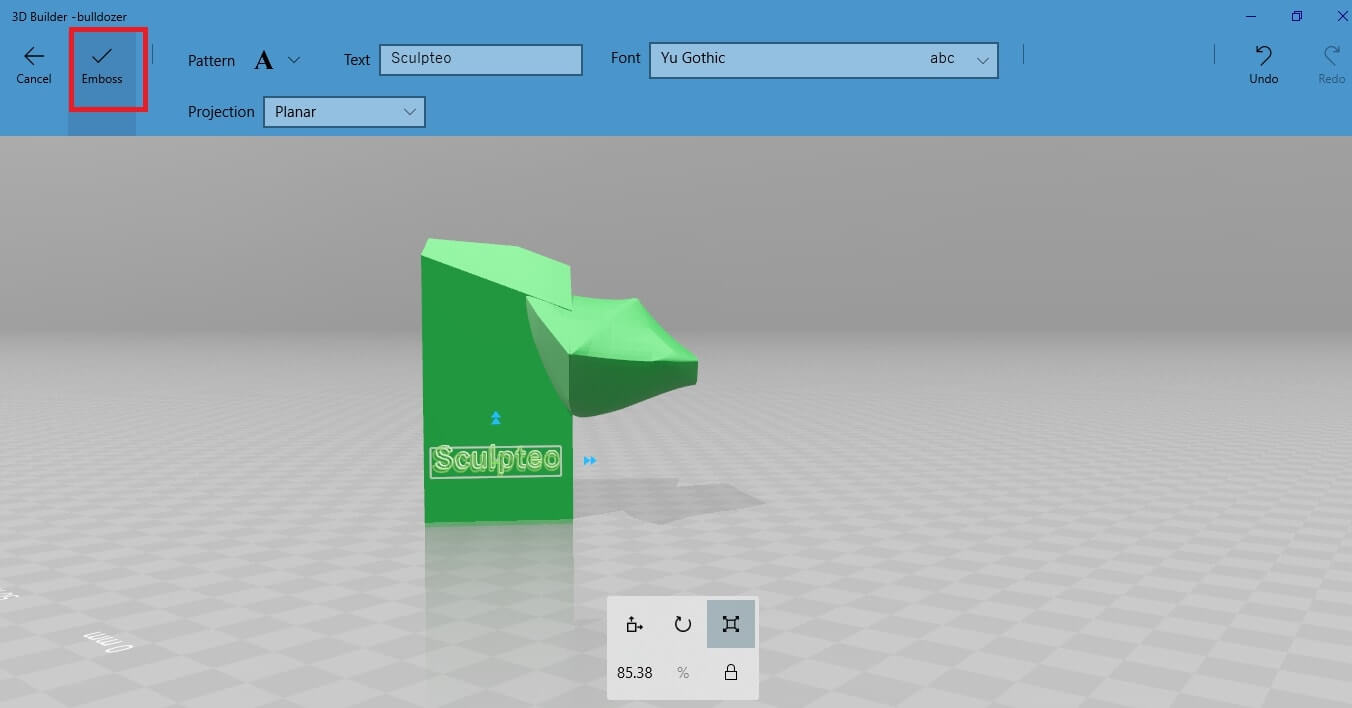 The text is updated in the 3D view and looks like this:
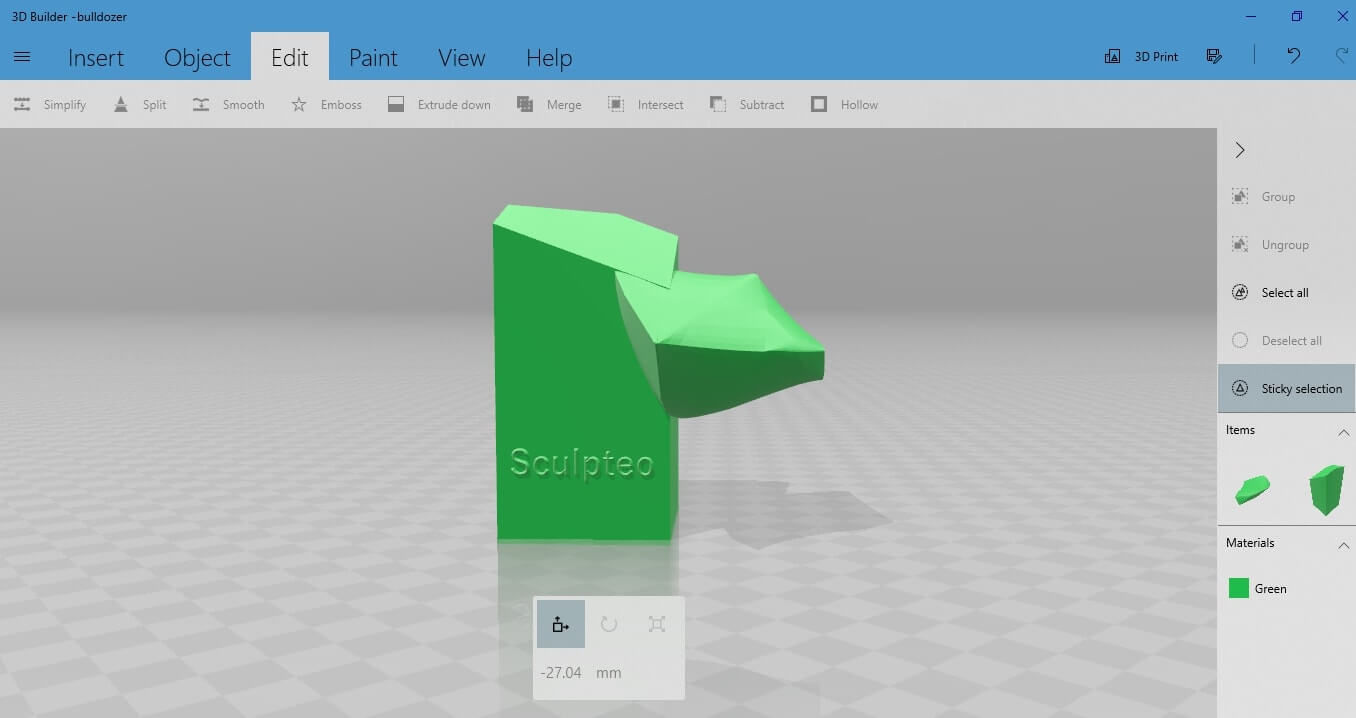
In the “Text” field type the text you want to insert. For example, let’s type the company’s name “Sculpteo”.
Select the font you want.
Select the projection mode for your text. Select between Planar, Cylindrical or Spherical.
Let’s select the planar version, as it’s the simplest one for this case. Move the text around to find the location where you want to place it.
Select the “Scale” button and drag the green arrow to increase the extrusion of the text so as to make the text visible.
Keep in mind that you design a 3D model for 3D printing. This means that it should respect the restrictions about the minimum height and width of the letters. Otherwise, a text that is not thick enough, might not be visible after the post-printing processing of your 3D object.
Once you are happy with the height of the details of the text, validate your action.
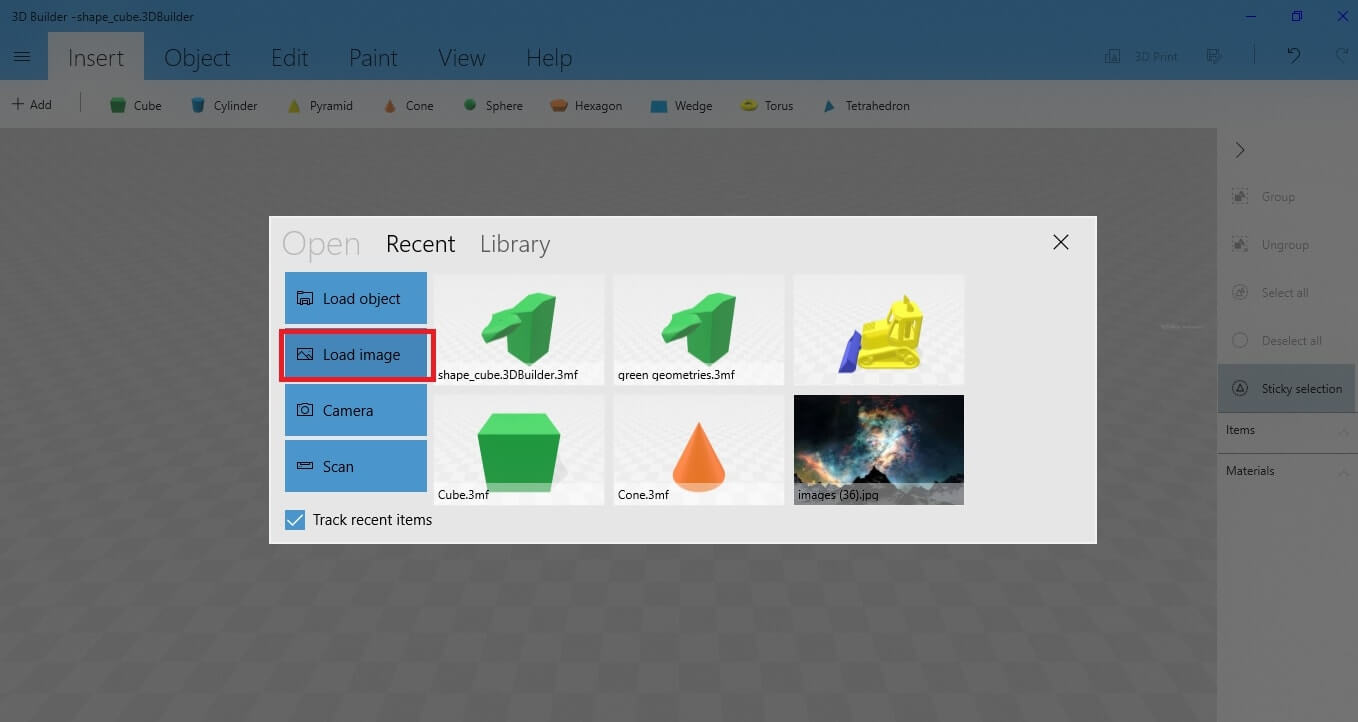
To import your image, go to the menu on the left side of the screen and select “Open”.
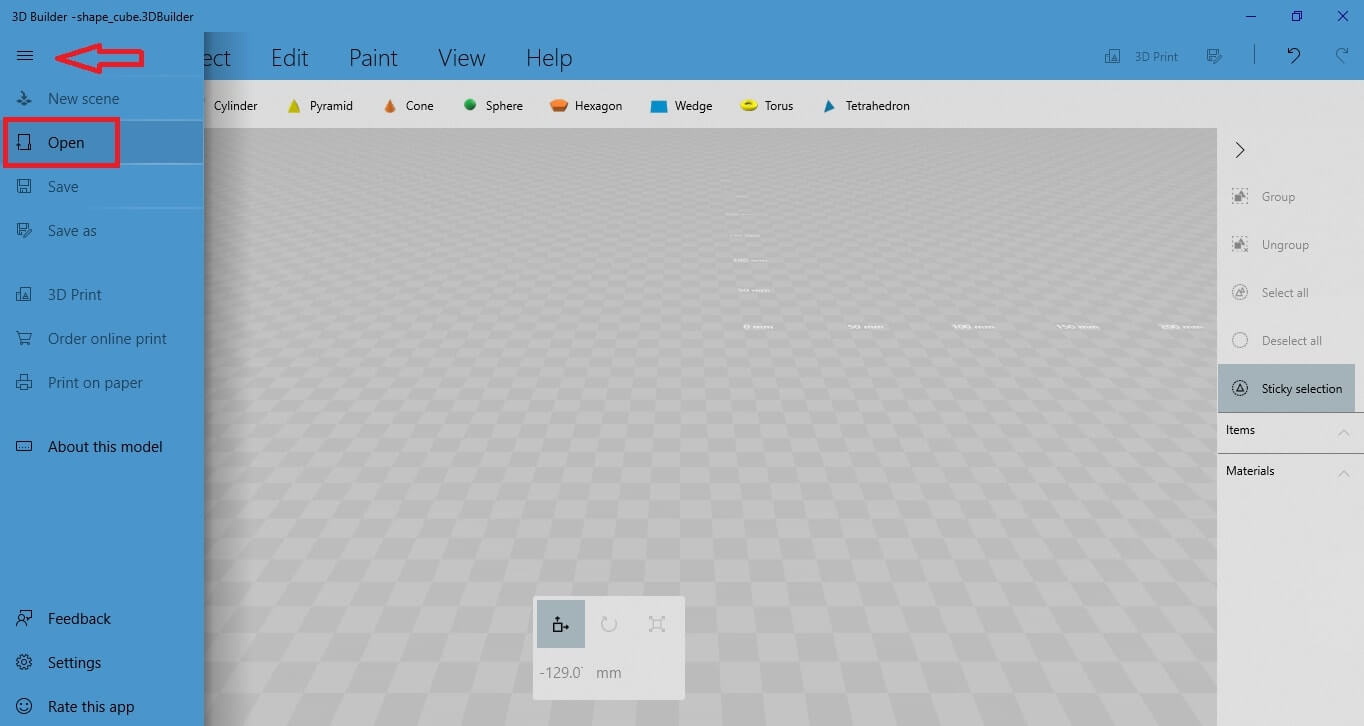
Then select “Load Image”.
Let’s use the 2D image of the Sculpteo logo for this demonstration.

Download the image of the Sculpteo logo and open this file.
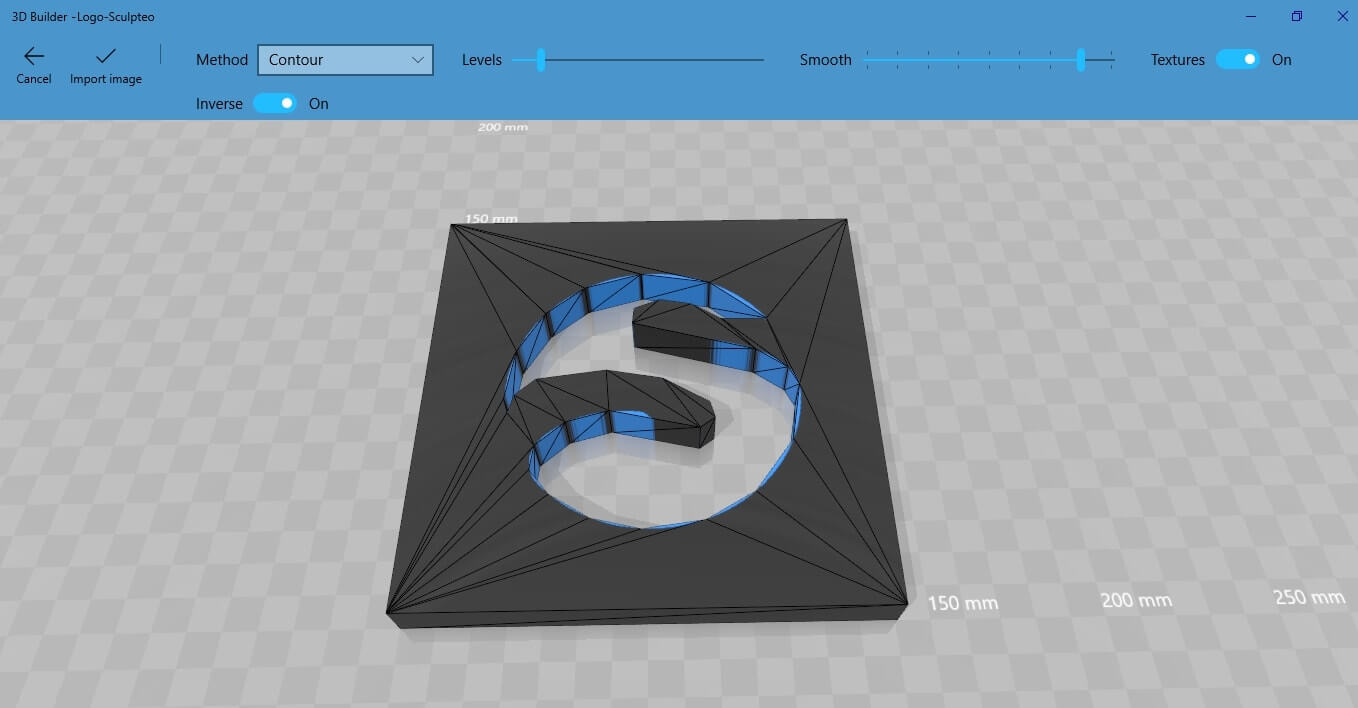
Once you open the file, you will get the following result:
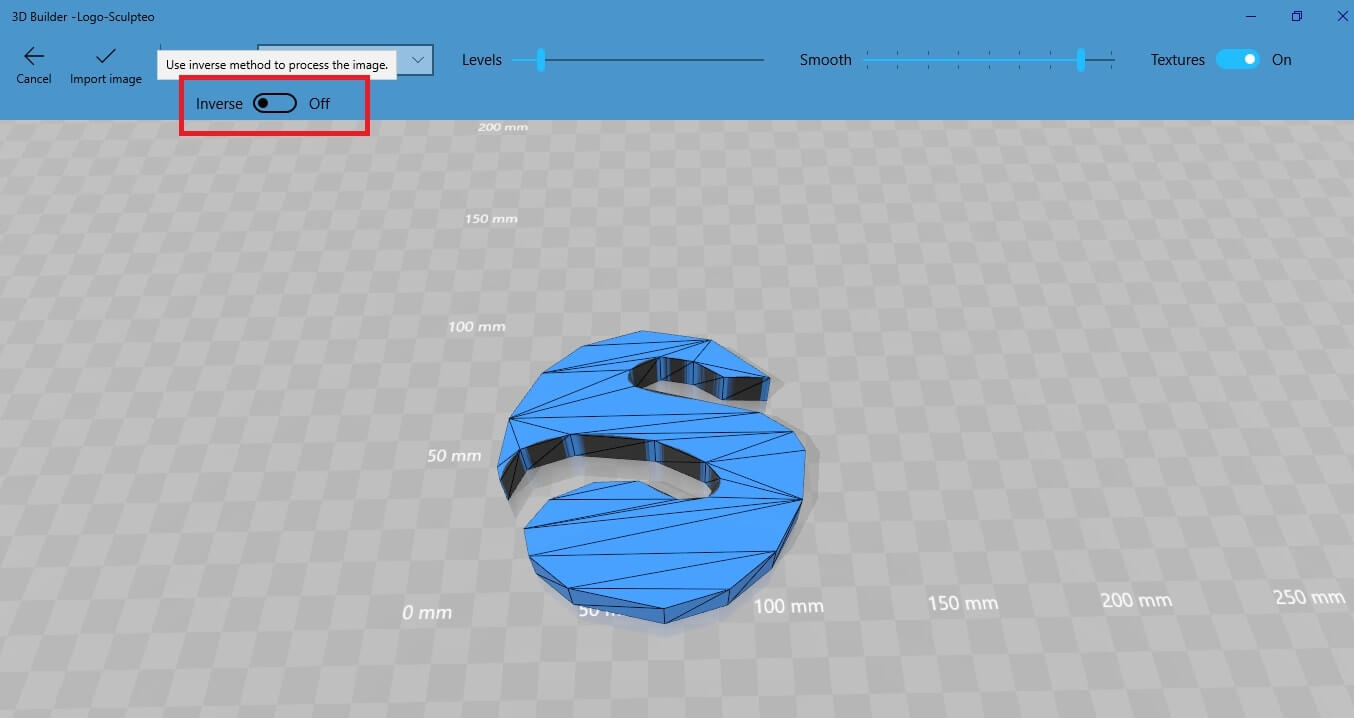
Select the inverse button to keep the inverted part of the image.
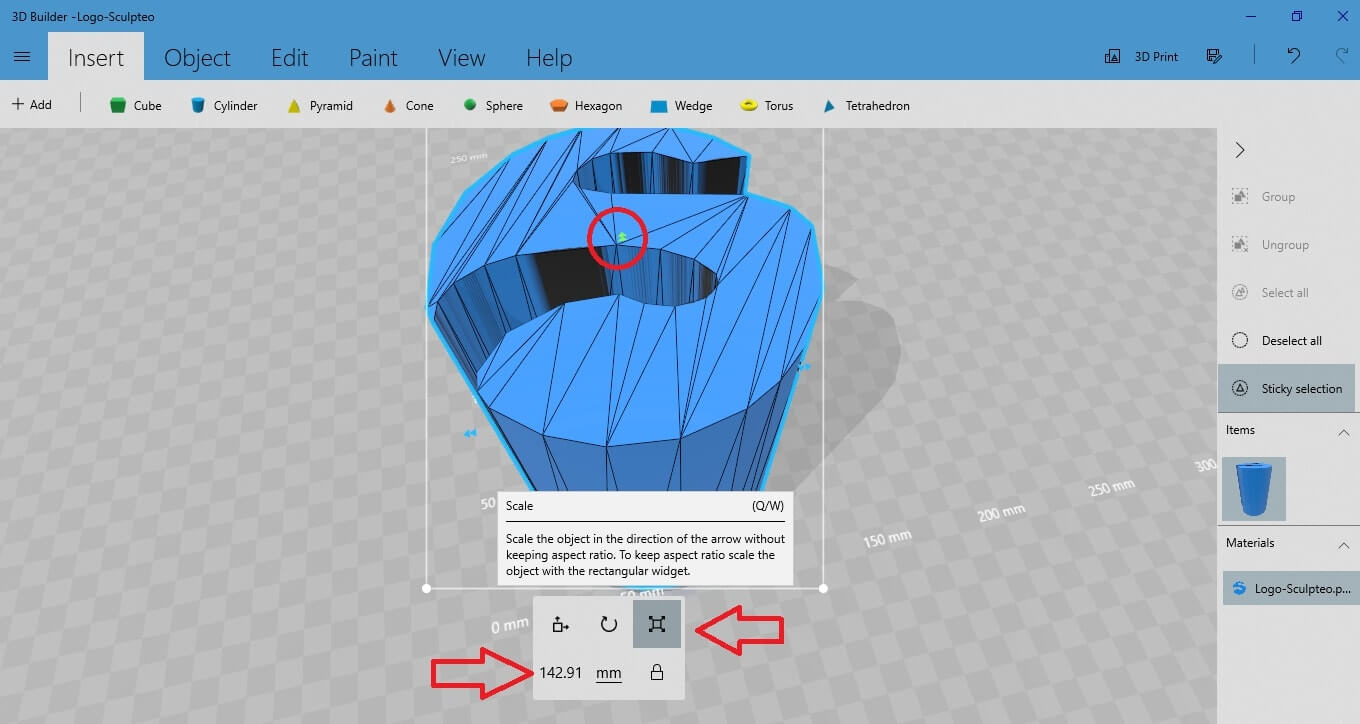
Go to the “Scale” button to adjust the height of the letter. All you have to do is drag the green arrow towards the direction you want to increase or decrease its extrusion value.
Validate the “Import Image” action and you will get this result:
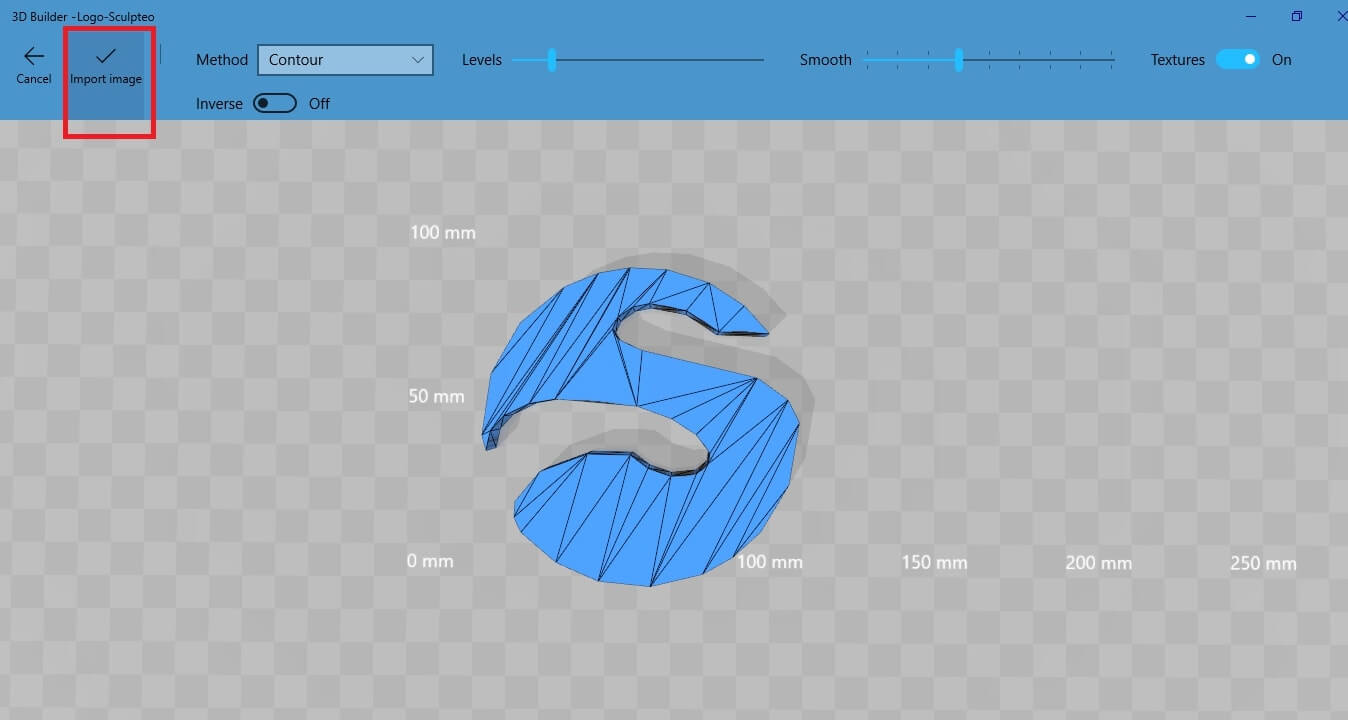
This is how
Now you can further modify this 3D object using all the tools for editing that are explained in the previous paragraphs (rescaling, duplicating, splitting, smoothing, embossing etc.).
Go again to the left side menu and select “Open”.
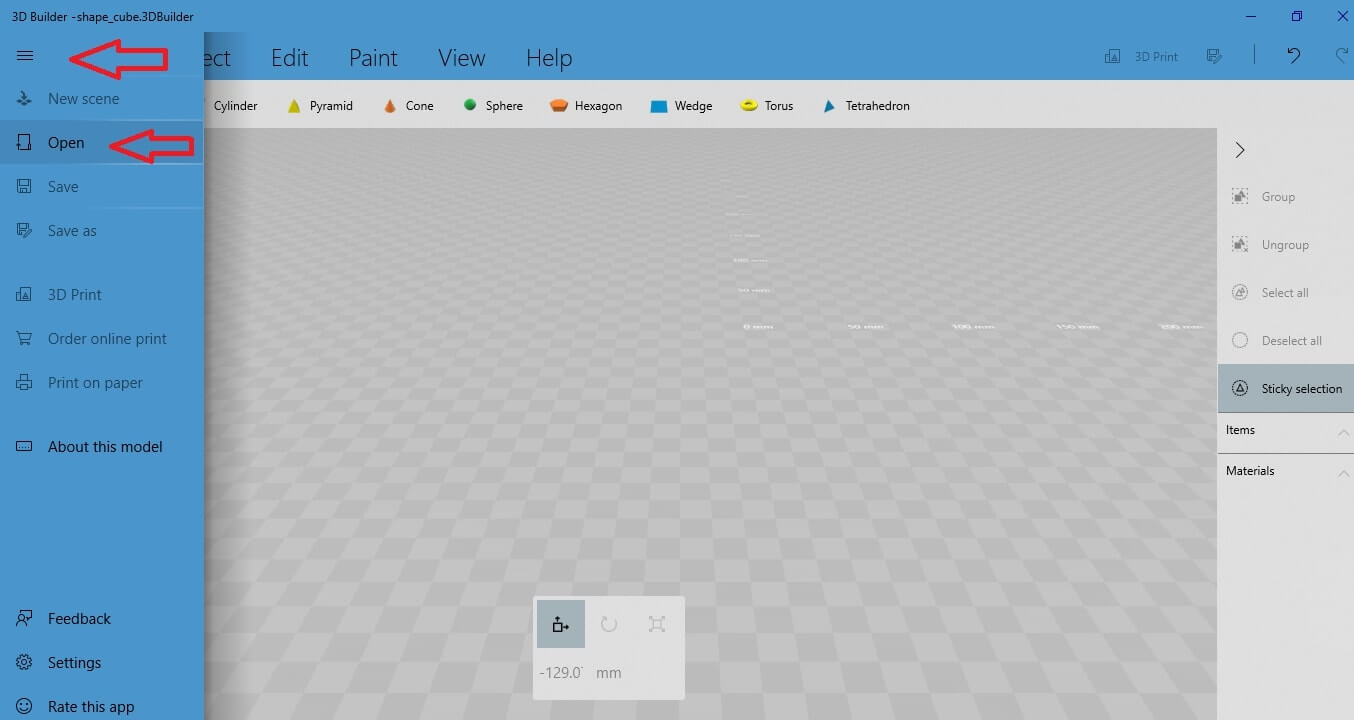 You will see the option “Camera”.
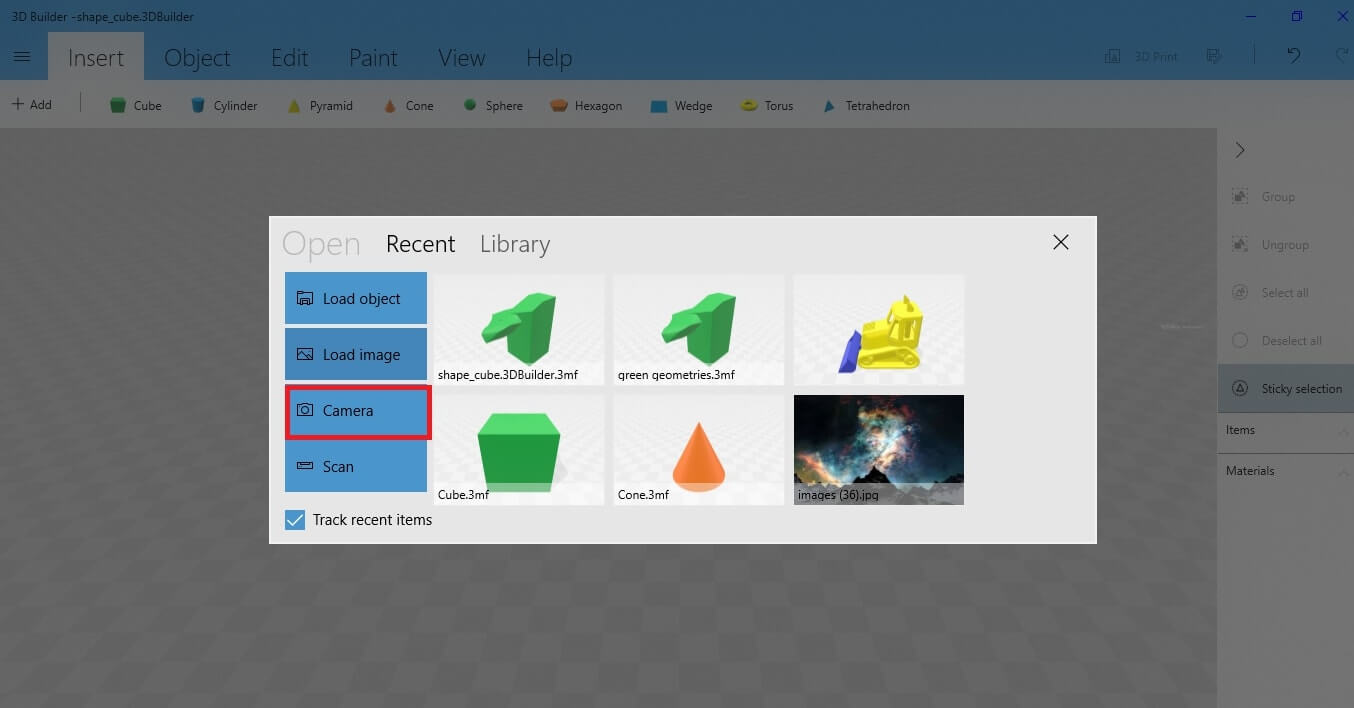 The “Camera” option works as the “Load image” option. You can take a photo with the camera of your computer and then turn it into a 3D object, exactly as you would do with the “Load image” function. If you want to create a customized 3D object out of a 2D image this is the tool for you.
You will see the option “Camera”.
The “Camera” option works as the “Load image” option. You can take a photo with the camera of your computer and then turn it into a 3D object, exactly as you would do with the “Load image” function. If you want to create a customized 3D object out of a 2D image this is the tool for you. Go again to the left side menu and select “Open”.
Let’s say for example that you want to edit the width of the cube. Select the scale button. Click on the arrow that corresponds to the dimension of the cube you want to edit. Drag the arrow towards the direction you want, to increase or decrease the width of the object.
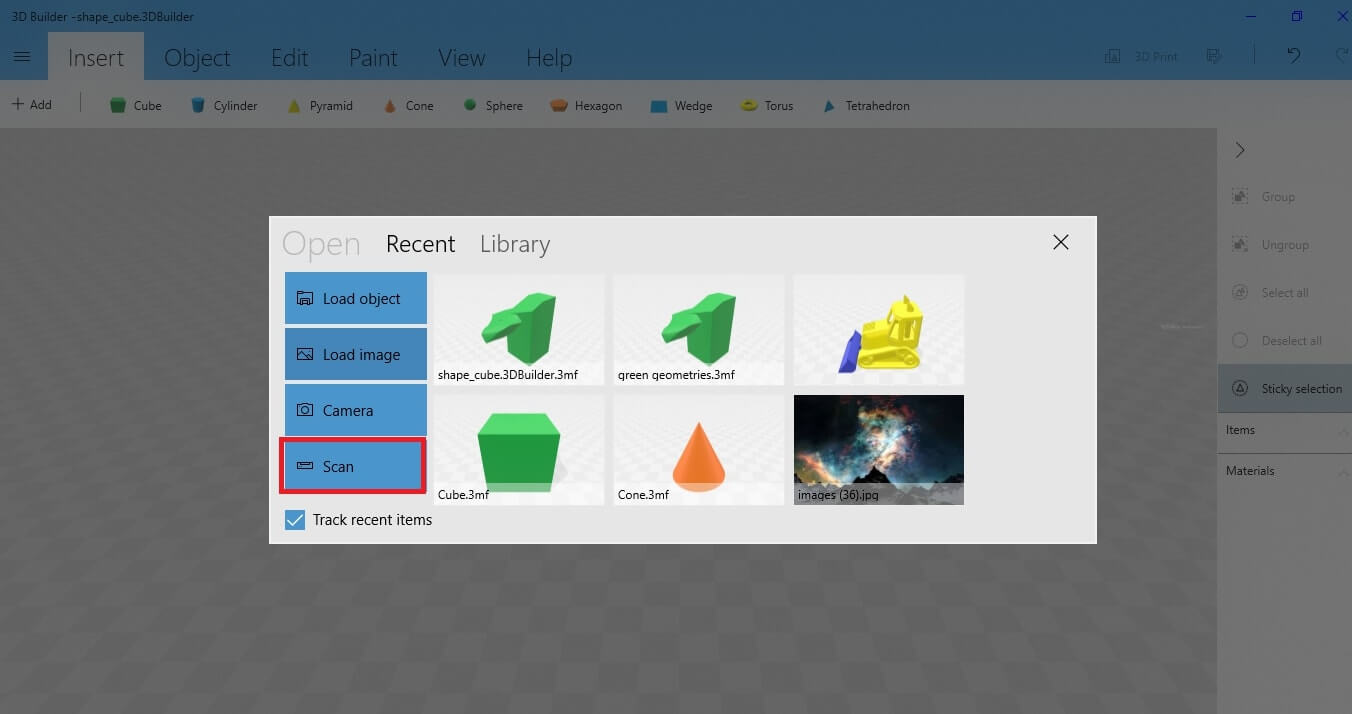
The “Scan” option gives you the possibility to scan an existing object and modify it using the 3D builder software. This is an excellent choice if you want to 3D print
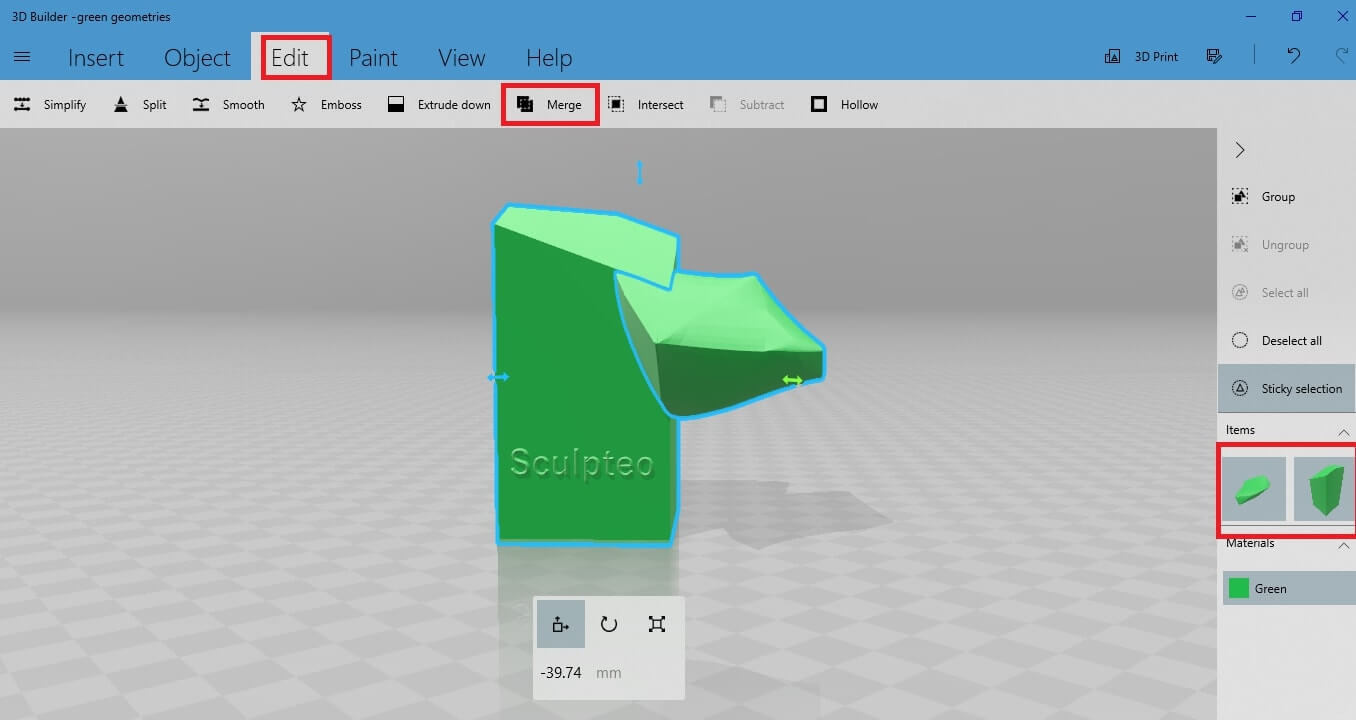
Let’s go back to the example we used in the paragraphs 1.1 to 1.9. There are two separate 3D shapes: a big vertical box and a smaller shape. These objects, it is possible to edit them as a whole or individually. You can choose how to do it simply by selecting them one by one or both of them at the same time.
In the current photo, there are two different objects because there are two separate windows, one for each object in the right menu.
However, if you want to 3D print your object, you should merge the two different shapes into one. This is something useful to do, as some 3D printing technologies do not accept files with multiple objects.
To do so, go to the “Merge” button. Select the “Merge” option that is under the “Edit” button from the upper menu.
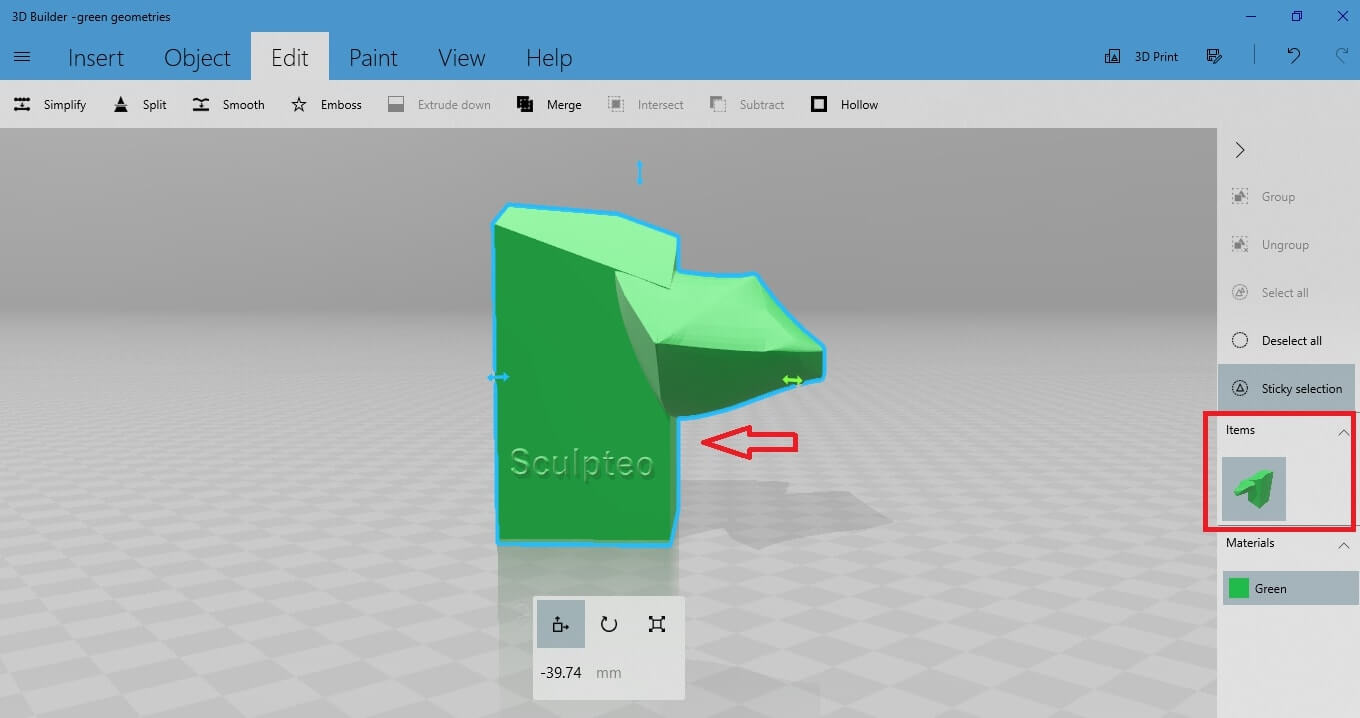
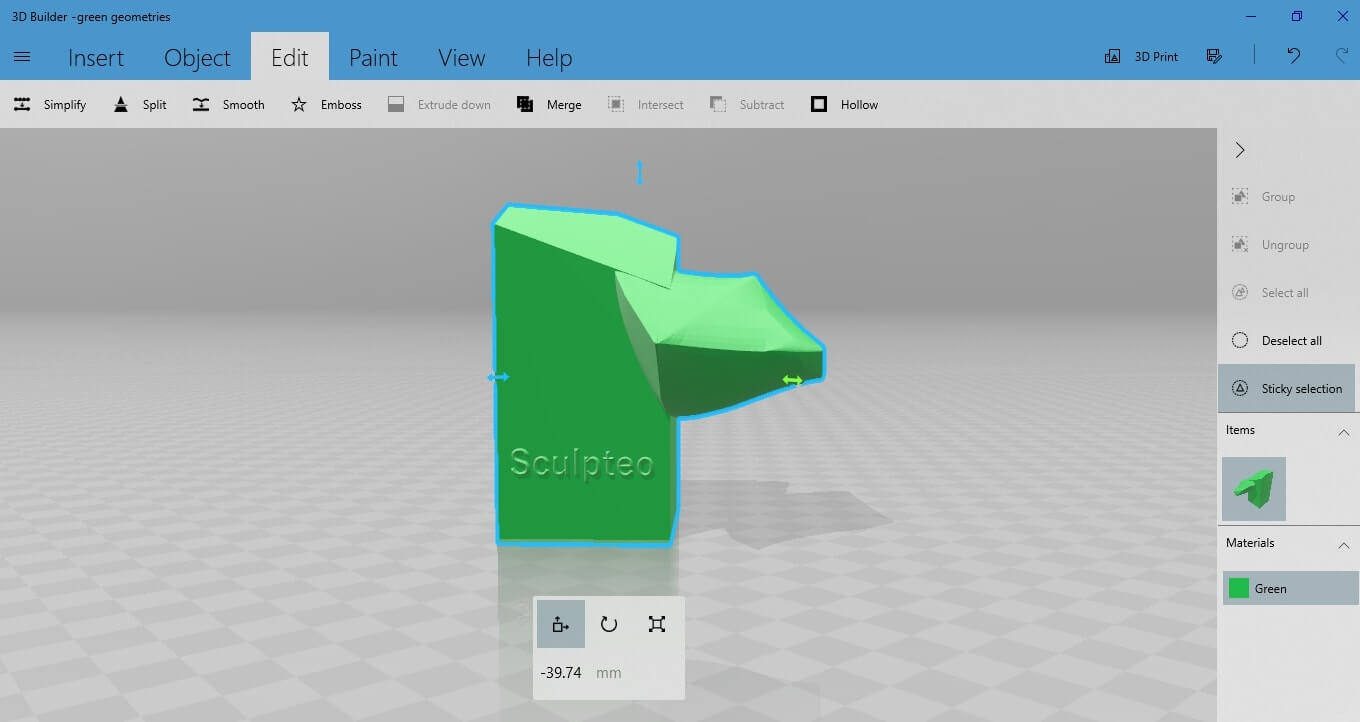
Now both objects are merged. You understand that now there is only one single object in the workspace, because of the single window on the right side of the menu. Also, notice that the blue stroke around the object has changed and it is unified to include both 3D objects.
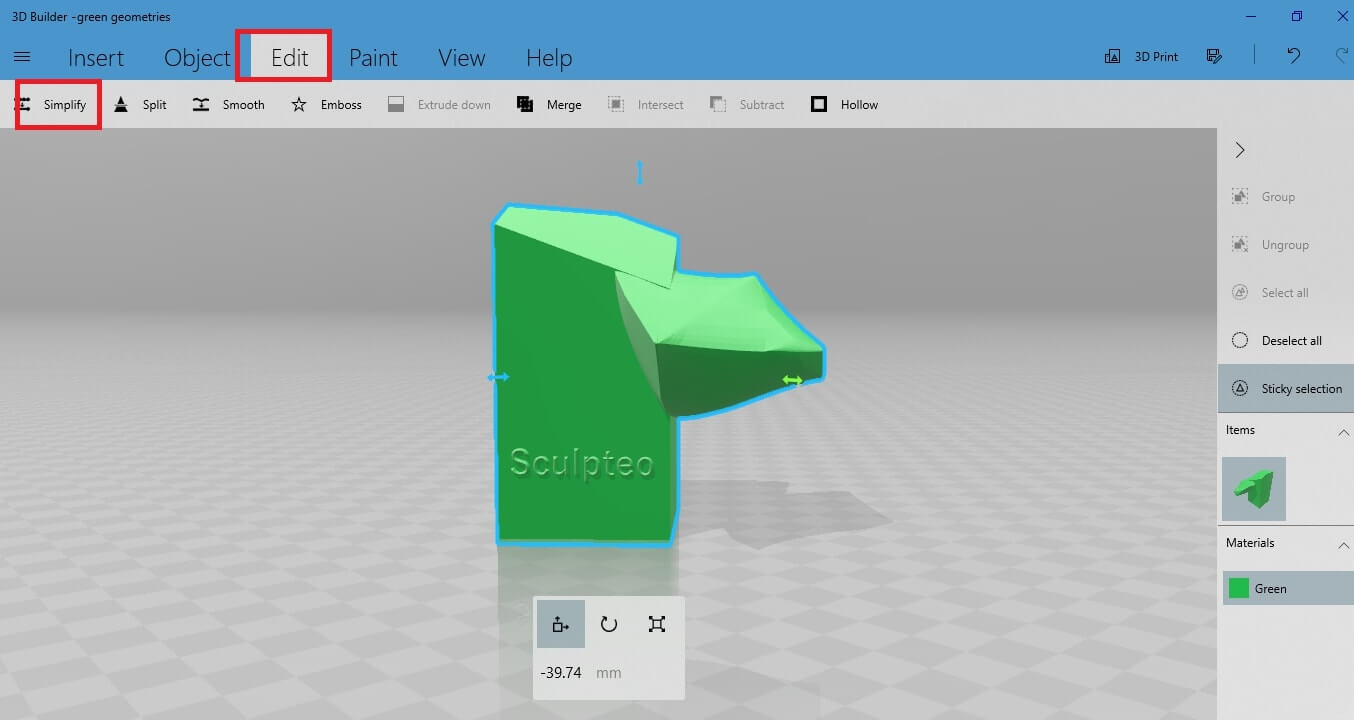
In order to have a 3D model that will be successfully 3D printed, you should mind the complexity of the “Mesh”. The more triangles that are created during the 3D designing procedure, the heavier the 3D file gets. This makes the 3D printing procedure more difficult. So, polygon reduction is an essential step for preparing your 3D model for 3D printing. To achieve polygon reduction when designing for 3D printing, you can use the “Simplify” feature.
To do so, go to the upper menu and select “Simplify” under the “Edit” button.
 Once the simplification is activated, you see the number of original faces. You should set a number of faces lower than the number of original faces. To do so, drag the Faces count bar to give the value of polygons you want.
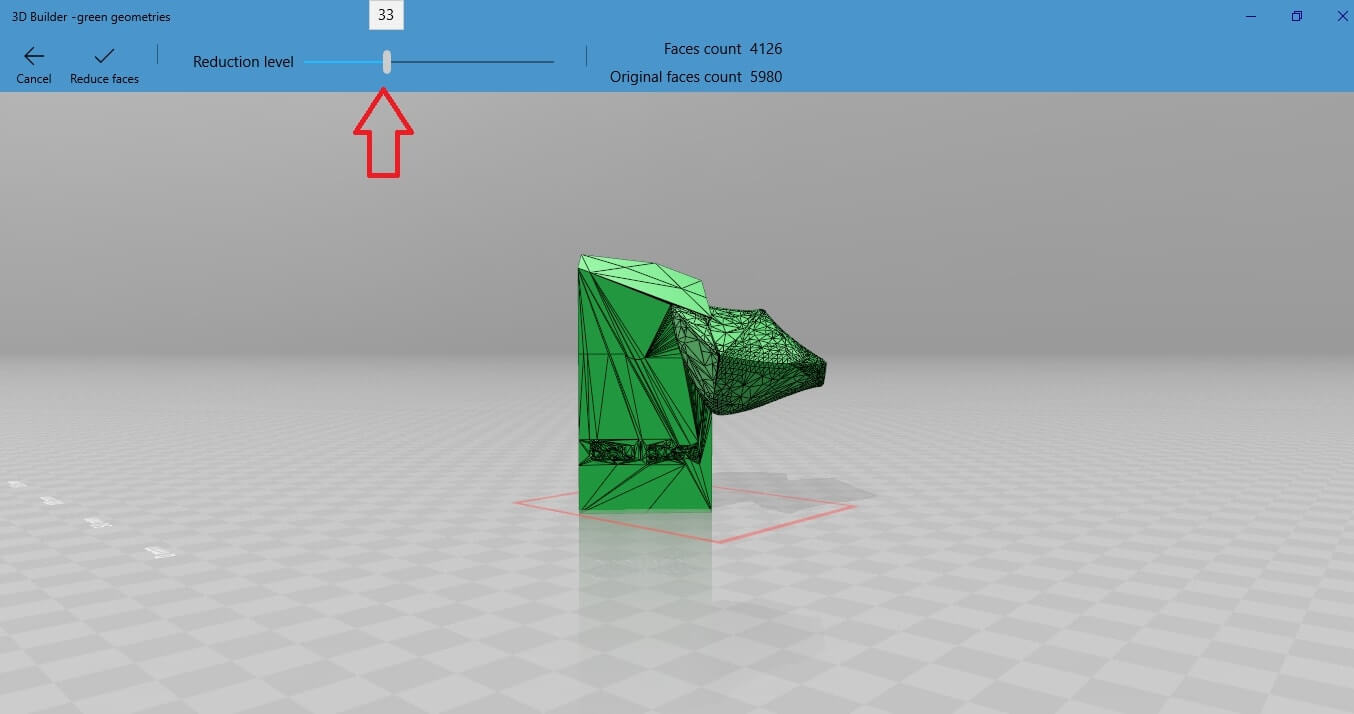 Let’s say for example you want your polygon mesh to be 4604 instead of 5990 that was the original.
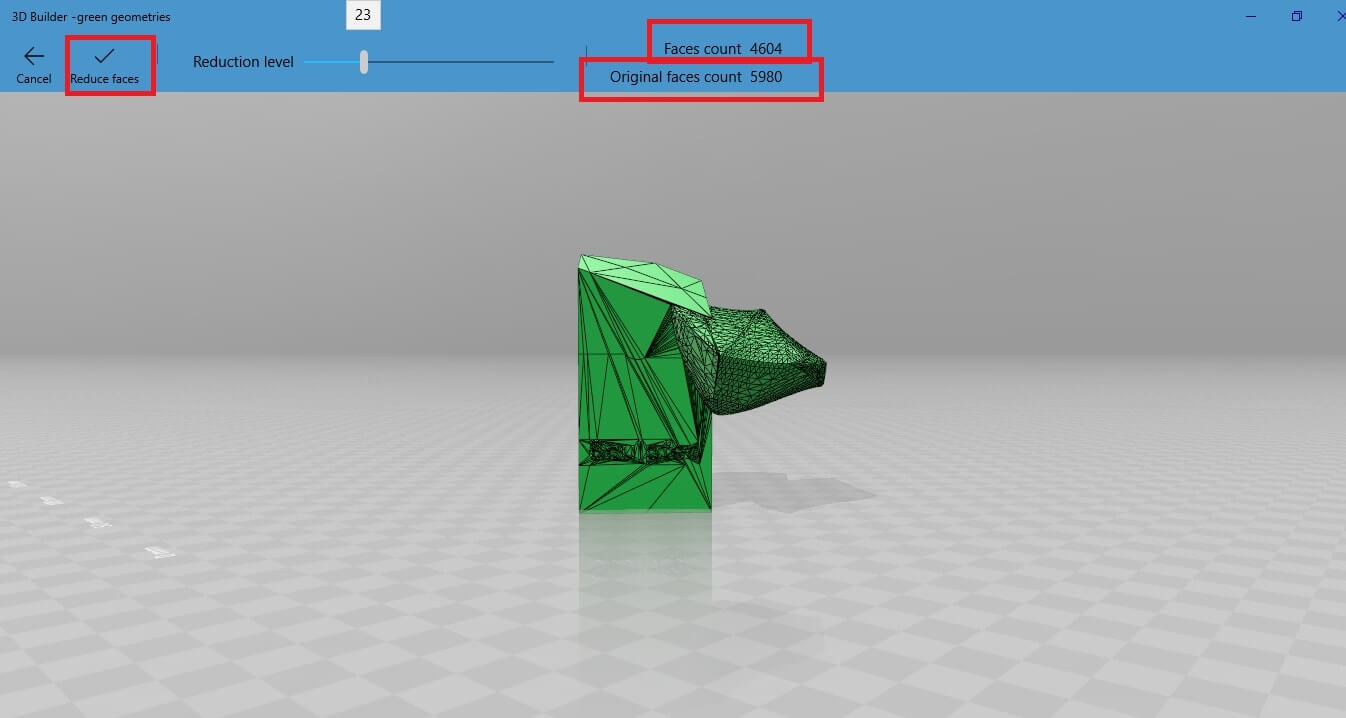 You will see a window appearing with instructions and options about manipulating the object.
Validate the action and return to the main workspace.
Now the mesh of your 3D model is significantly lower.
You will see a window appearing with instructions and options about manipulating the object.
Validate the action and return to the main workspace.
Now the mesh of your 3D model is significantly lower.
Once the simplification is activated, you see the number of original faces. You should set a number of faces lower than the number of original faces. To do so, drag the Faces count bar to give the value of polygons you want.
Let’s say for example you want your polygon mesh to be 4604 instead of 5990 that was the original.
Validate the action and return to the main workspace.
Now the mesh of your 3D model is significantly lower.
Now, let’s simulate the result of your 3D print. For this experiment, you can use the Sculpteo logo that you created in the paragraph 2 of the tutorial.
Go to the left menu and select the option “3D print”.
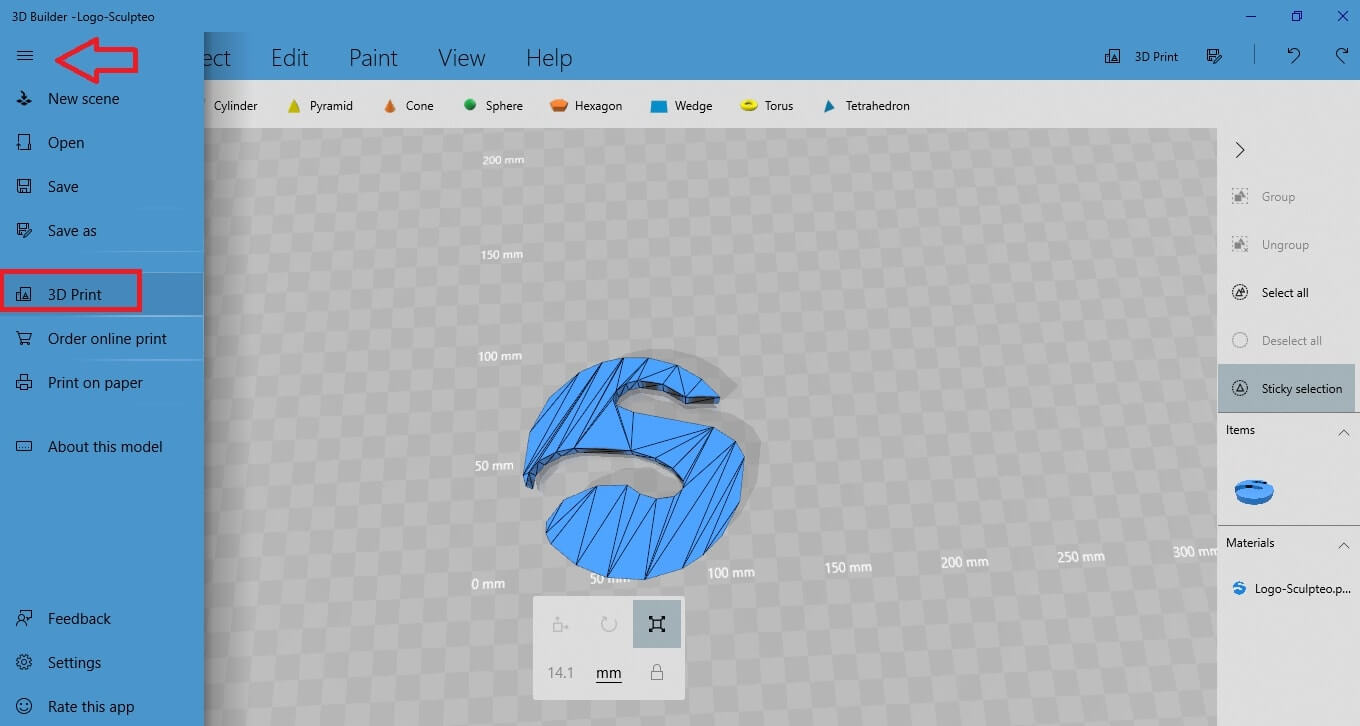 You will get this window:
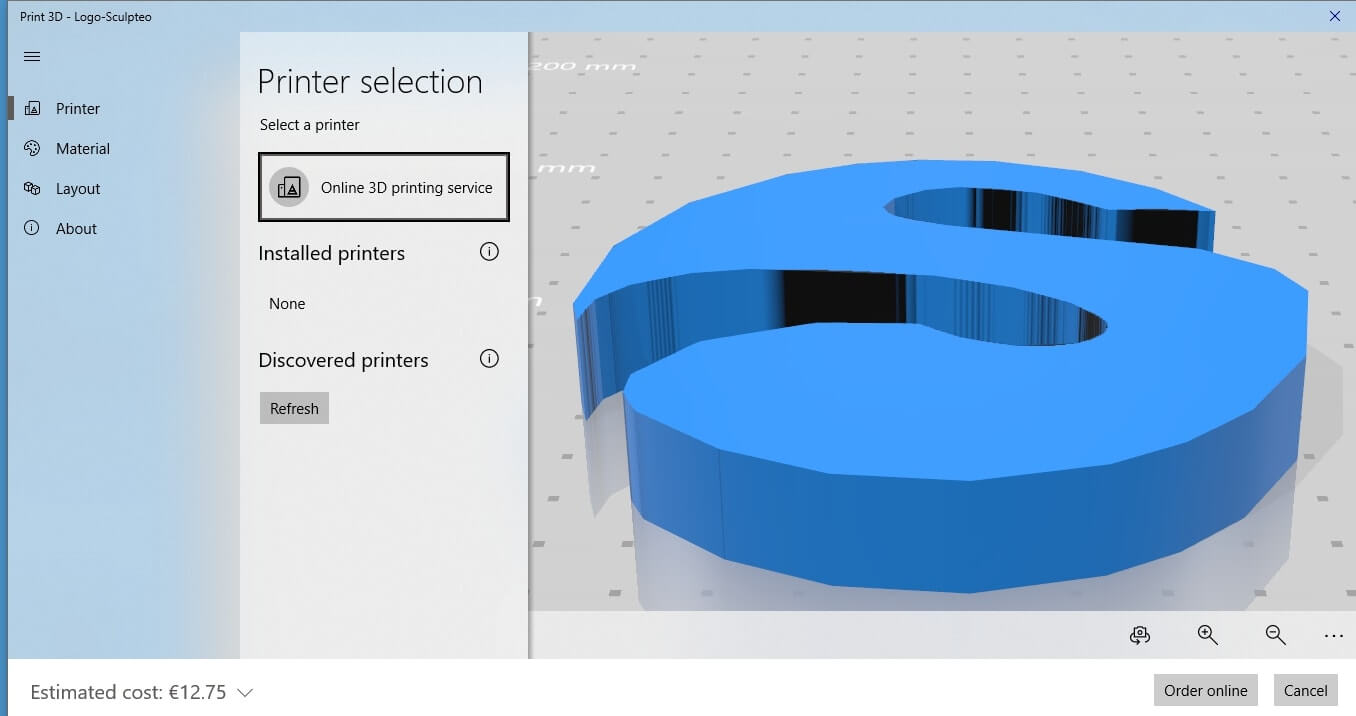 Select the “Material” button. You will get various options for the 3D printing technology and color to choose for your print.
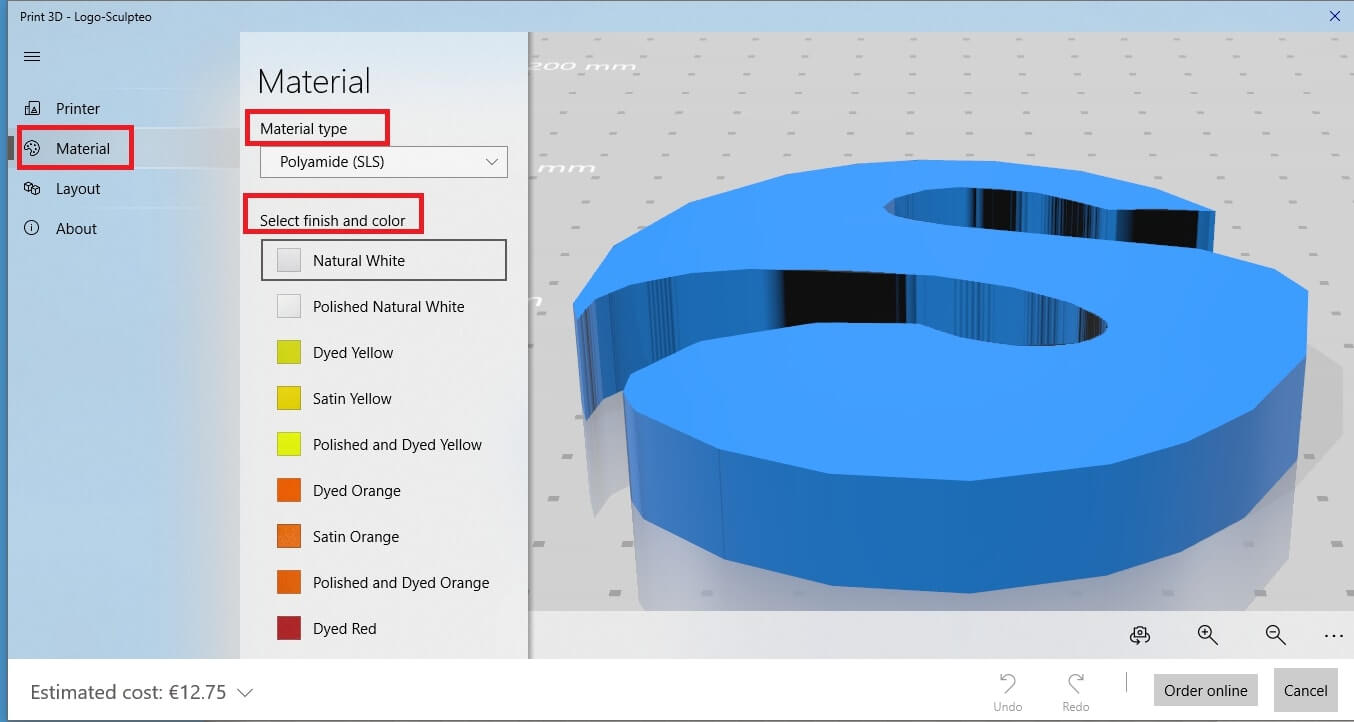 Once you choose technology, material and finish option, you can see that the estimated cost for your 3D print changes dynamically in the lower left corner of your screen. This way you can get an idea of the cost of your 3D model that depends on many factors: 3D printing technology, material, finish, size etc..
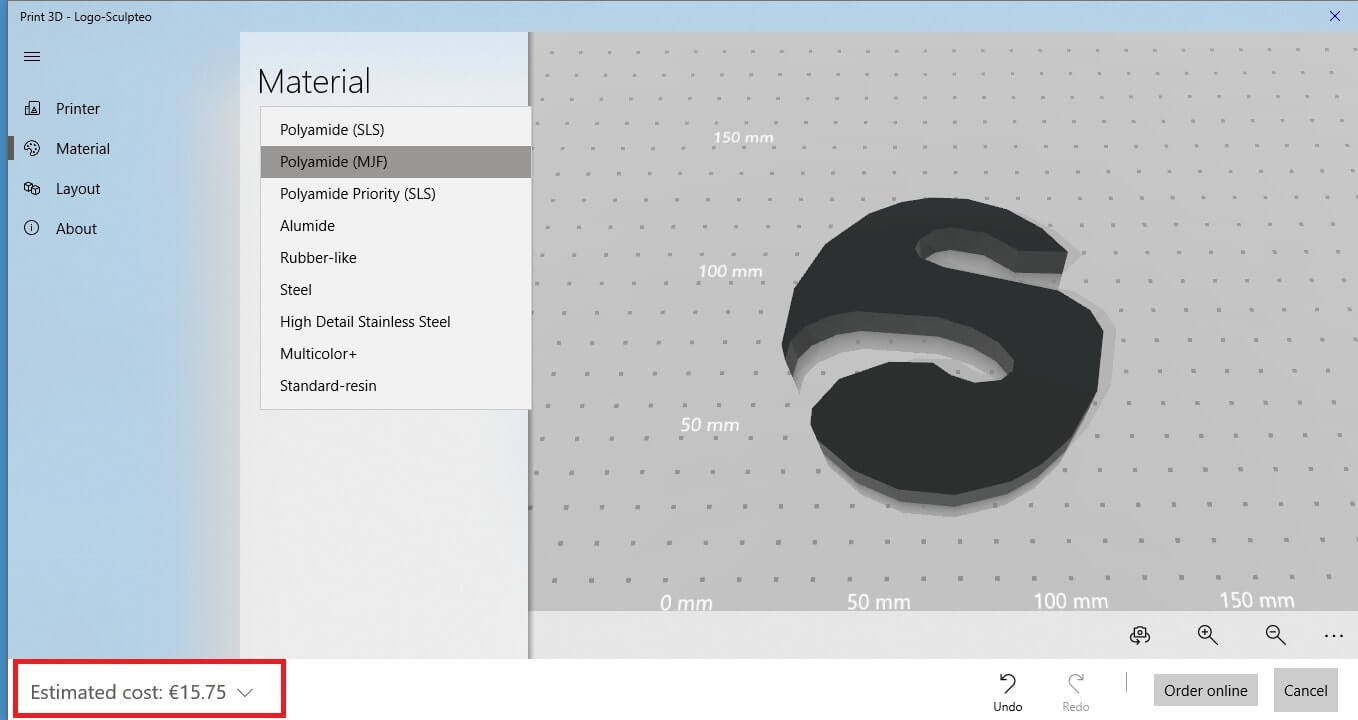 This is an excellent simulation tool to preview your 3D model with different textures and colors before sending your 3D object to the printers.
You will get this window:
Select the “Material” button. You will get various options for the 3D printing technology and color to choose for your print.
Once you choose technology, material and finish option, you can see that the estimated cost for your 3D print changes dynamically in the lower left corner of your screen. This way you can get an idea of the cost of your 3D model that depends on many factors: 3D printing technology, material, finish, size etc..
This is an excellent simulation tool to preview your 3D model with different textures and colors before sending your 3D object to the printers.
As you already may know, you have to save your 3D file to the right format in order to 3D print it. To do so, go to the left menu and select “Save As”.
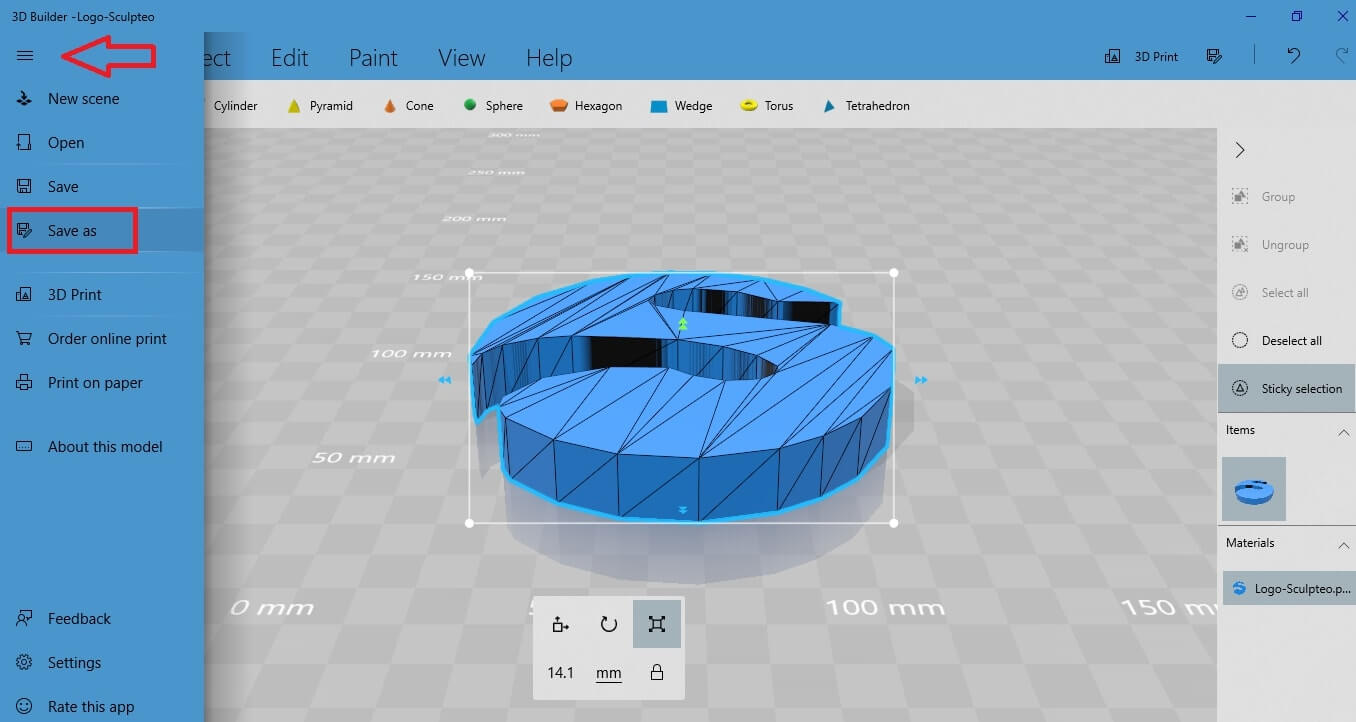 There, the suggested format to save your file for 3D printing is
 the . STL format, or the . OBJ format.
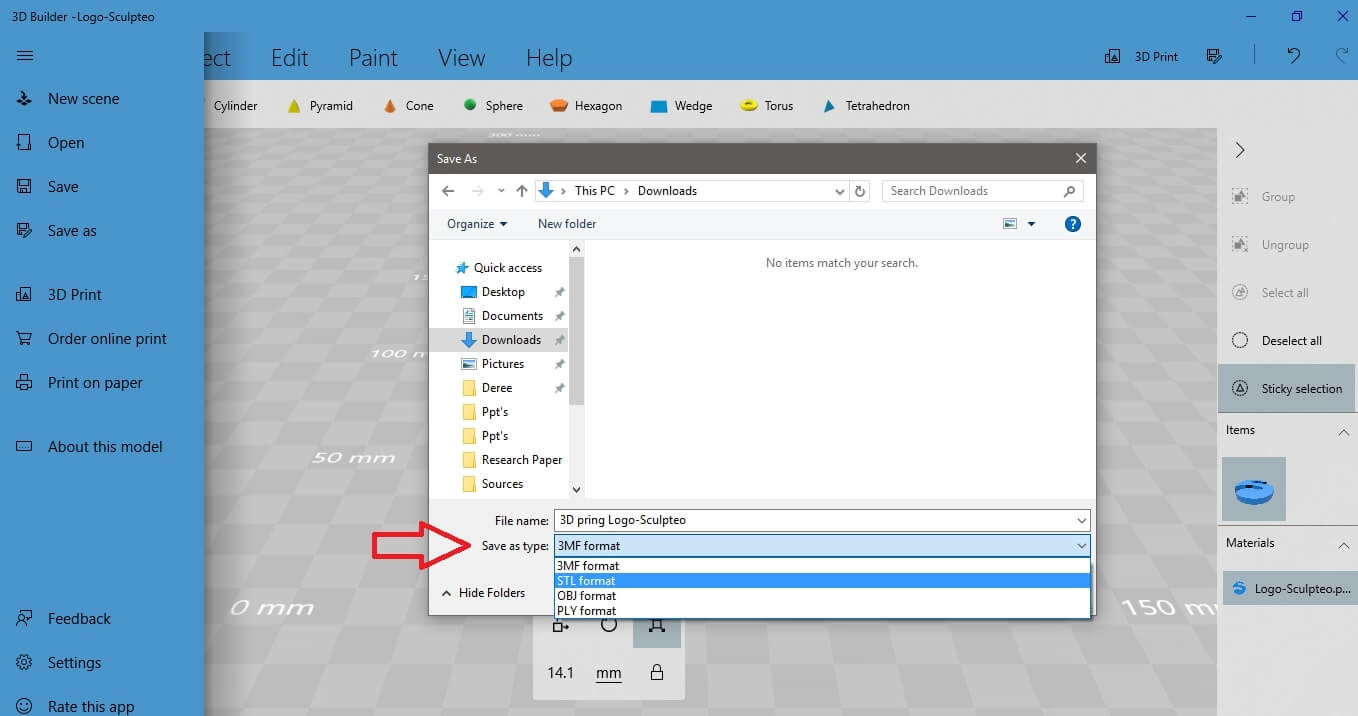 Select which one you want and save your file.
Now you are ready to upload your 3D file to our online 3D printing service and send it to our printers! We will 3D print it for you and send it you the soonest possible!
Select which one you want and save your file.
Now you are ready to upload your 3D file to our online 3D printing service and send it to our printers! We will 3D print it for you and send it you the soonest possible!
There, the suggested format to save your file for 3D printing is
Select which one you want and save your file.
Now you are ready to upload your 3D file to our online 3D printing service and send it to our printers! We will 3D print it for you and send it you the soonest possible!